Convert PDF to Word and see how it looks
PDFs can be tricky to edit as they can appear to be a regular document. Converting the PDF to Word can provide you with editable text, however it may not provide you with a clean Word file. This guide will show you how the conversion actually looks. This converter can be opened using a non-sensitive practice PDF to get an idea of how it looks.
We created a 3 page PDF with 4 text elements per page. These included: Chapter title, Short description, Example number line and Source page. This gave us a 5716 byte DOCX file. We opened it up and looked at the internal text. All 3 pages were shown and we could see all the expected lines from the source.
However, the text was all in text boxes. Whilst this isn’t a deal breaker it can make the editing process a bit more difficult. If you want to make a small change to the wording it can be easy, however if you want to write a lot more it can mean you have to do some formatting.
Upload and Convert
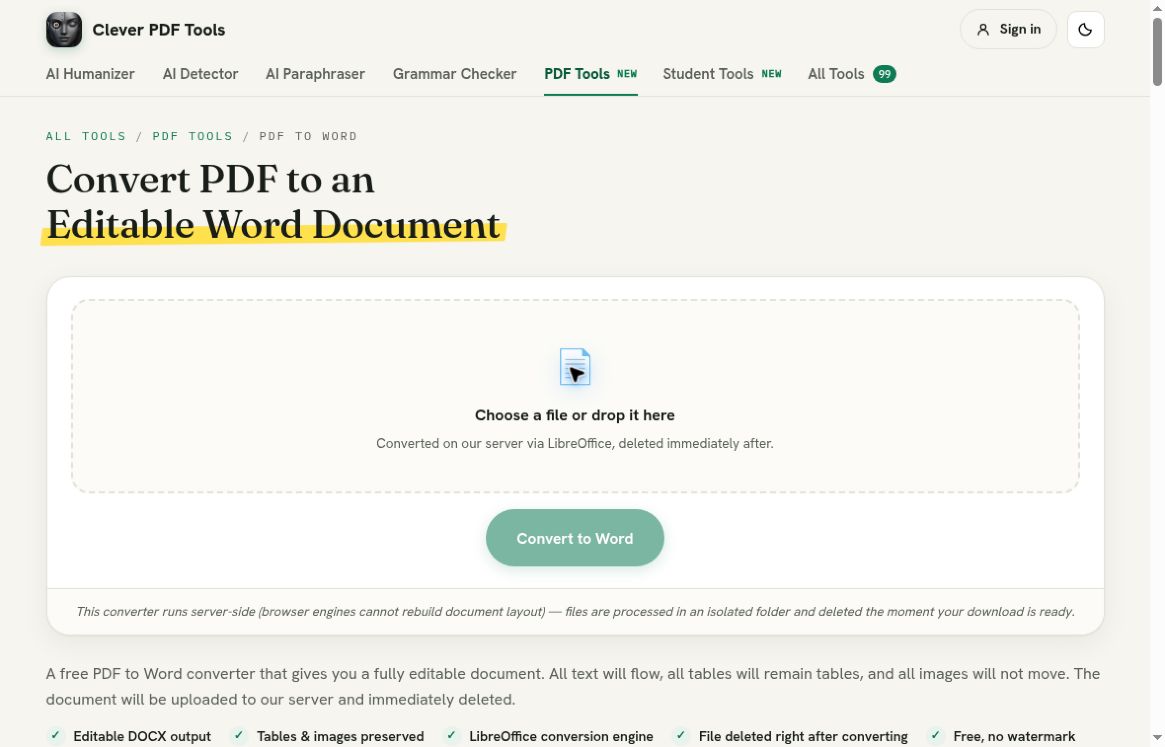
This converter works slightly differently to the other PDF tools on the site. The interface tells you that the file has been converted on the server using LibreOffice. We used synthetic data so there was no personal information. However, you shouldn’t assume any privacy from this tool as it is different to the other tools on the site.
Once the file is converted you will be told it has been processed in an isolated folder and deleted. If your document contains any confidant or sensitive information ensure you check any requirements beforehand. Just because it is easy to convert doesn’t mean you should ignore any requirements.
[Screen Shot: The PDF to Word page shows it converts on the server. There is an Add files section.]
Create a useful source document
Open up your PDF in a viewer. Ensure it has the correct number of pages and that it is the correct version for editing. Take note of any tables, columns, images, headers or odd spacing. You can then check these areas once converted. Ensure you don’t change the original PDF.
Select a sentence in the source document. If you are converting a text based PDF it will be different to converting an image of a scanned page. Our fixture had real text so this test would apply to a real source document. We didn’t test OCR on a scanned PDF.
If your PDF is protected or restricted ensure you use an authorised method. Don’t assume you can remove protections or change someone else’s document just because you are converting the format. If you are editing with others ensure you are using the correct approved version.
Select your PDF
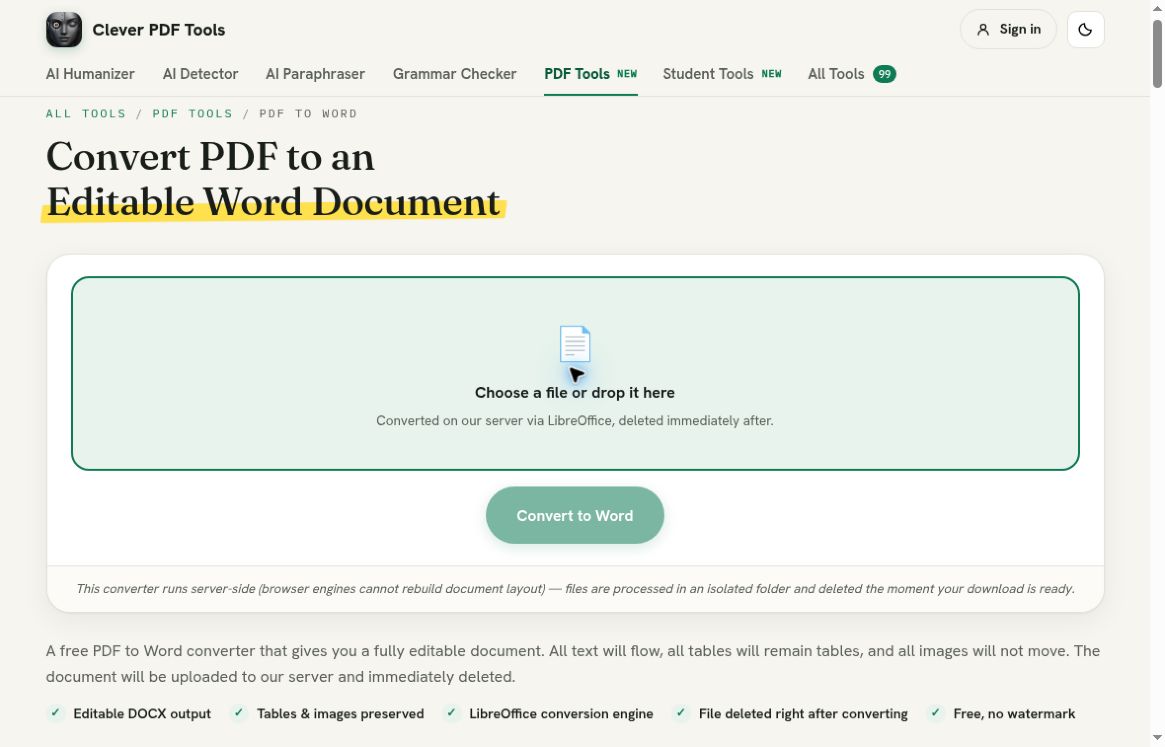
Click Add files and select your source document. Ours showed as study-packet.pdf (23KB). Ensure you check the name and file size. It is easy to confuse a draft with the final version if they have similar names and there are multiple exports in the same folder.
[Screen Shot: The 3 page synthetic study-packet.pdf has been selected. Click Convert to Word.]
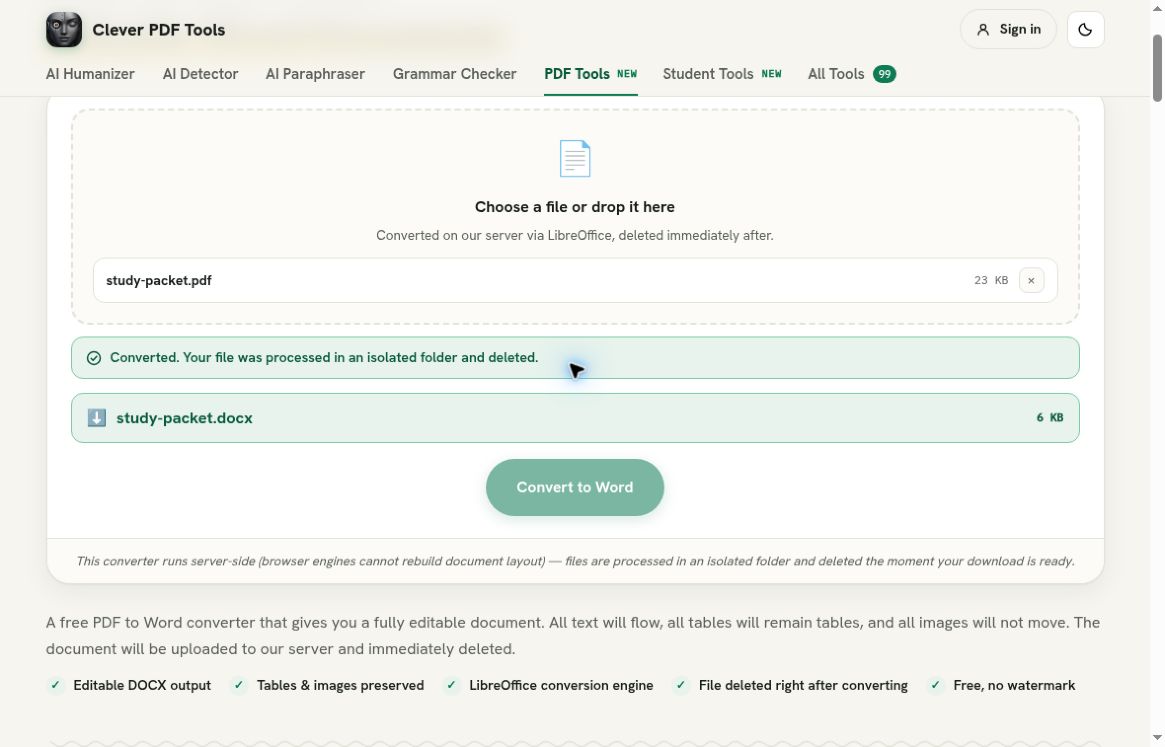
Click Convert to Word. The page will show it is waiting for the server. We waited for it to finish converting. Once complete there will be a link to download your study-packet.docx. The file size will show as 6KB.
[Screen Shot: The page shows the DOCX is ready to download. It also shows it has been converted.]
Download your file. Rename it to something different to the original PDF. Ensure you keep the .docx extension. If you rename the original PDF to .docx it won’t do what you want. A real Word document won’t have the same internal structure. Our file was a valid DOCX.
Check the content
Open your DOCX file in your word processor of choice. Check the number of pages and main content. Our converted file had 3 pages, matching our source. We could see the chapter titles, example numbers (10, 20, 30) and source pages.
Check the top and bottom of each page. It can be easy to miss any errors that have occurred during conversion. Whilst the title may look correct the footer, caption or edge may have moved. If it is a long document create a quick list to check: Headings, Tables, Figures and any small print.
Click into the text. In our test the text was in text boxes. If we had used a simple text extractor we wouldn’t have seen much. This is because the meaningful text was in the text boxes. The text wasn’t missing it was just stored differently. This is a good tip to know.
When adding text it may not flow as you expect. The text box may be fixed and you may need to adjust the size or position of the text inside. If you want to make large changes consider rebuilding the text into normal paragraphs and formatting. Keep this version separate until you have checked it against the source.
Check the formatting
Our simple fixture had clear formatting on all 3 pages. However, we didn’t test if tables, layered images or multi column articles would be kept. The site makes general claims about keeping tables and images. If these are important to your document check them in your converted version.
The font may change. This can affect how the text wraps. Tables may look correct but when editing they may overflow. Save a copy of your document before making large changes. If your final document is going to be a fixed layout export a PDF preview.
Don’t assume just because you have downloaded the file you are done. You will need to make the changes you want, check for any typos and ensure there aren’t any formatting issues. If you are sharing the document with someone else open up your saved version.
Know when you are done
Overall this gave us a useful starting point. We had a valid DOCX (5716 bytes), 3 pages and all 12 text elements. However, it wasn’t a clean version of the original in Word paragraphs. This is the main thing to take away from this guide.
If you are only making a small change the text boxes may be okay. However, if you want to restructure multiple pages you will need to do some extra editing or rebuilding. If you need an accurate transcript from a scan use an OCR method and check the output. Consider what you want to do next.
Try making a small change to a copy of your converted file. Change a short phrase to another phrase of similar length. Save and close the file. Open it back up and check the text you have changed and surrounding text.
If you have text in a text box you may need more space for longer text. Check the bottom of the text box and surrounding text. If the formatting looks awkward undo your experiment. Our test showed we had the correct content however we didn’t test all the editing features in all word processors.
A useful note to leave for the next person would be a short note. Tell them where the source PDF came from, that the text is in text boxes and which pages you checked. This will help them understand why the paragraph tools may not be working as expected. If you are rebuilding the content into a more conventional document double check the headings, order of paragraphs and page references match the source. Converting and rebuilding are 2 separate tasks so keeping them separate makes them easier to check.
Try using the tool with a practice file. Download the DOCX and check how it looks. Ensure you keep the source PDF until you are happy with the content and formatting of your edited document.