There are many different punctuation marks you may wish to clean up. An em-dash, en-dash and hyphen can all look similar but they are not the same. This walkthrough will show how this free tool works with a short example. This example includes an aside, page number range, smart quotes and ellipsis. The screenshots below show the exact punctuation.
This example does not involve the AI rewriting the text. We can use the controls on the page to clean up our punctuation. We will first use the default dash options. After this we will use some extra options. Finally, we will turn off the en-dash option to keep the full range of typography. We will look at the results in the output box.
Before using a punctuation cleaner tool, you should consider why you want to clean up your punctuation. This could be due to your house style preferring to use commas in the aside. Or maybe your destination requires straight quotation marks. You may want to use simpler punctuation for your plain text export. However, removing punctuation does not indicate that the text was written by a certain type of author. The amount of punctuation does not indicate who wrote the text.
You should always save a copy of your source text. Changing punctuation globally can affect your quotes, ranges, titles and stylistic choices. The best way of doing this is to select the punctuation you want to change, and look at a small sample. This guide will demonstrate this.
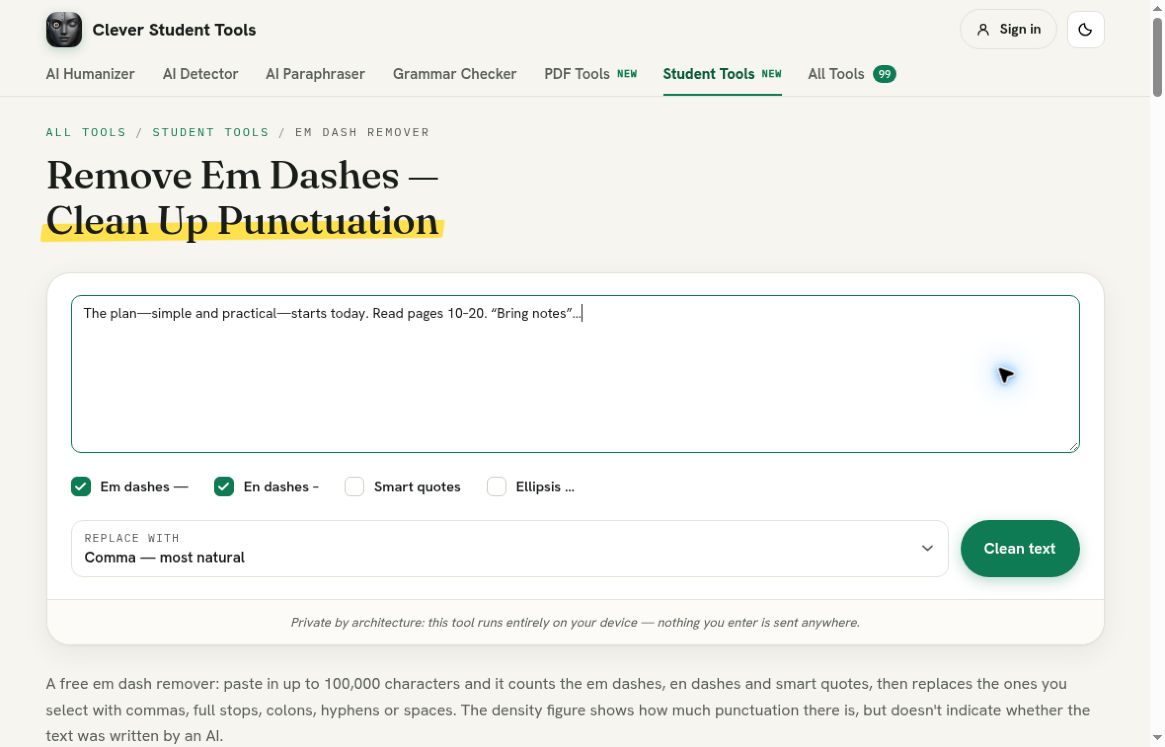
Navigate to the Em Dash Remover page. The default options are to replace em-dashes and en-dashes. Smart quotes and ellipsis are not selected. The default replacement options are to replace punctuation with commas. This is what we saw in our example. Always make sure you know what options are currently selected.
Enter the example shown in screenshot one. This includes two em-dashes around the aside, an en-dash in the page range, two smart quotes around the instruction and an ellipsis. This example includes a range of different punctuation to make it easy to see what options are being used. The words in this example are made up and do not include any private information.
Screenshot one: This shows the mixed punctuation example.
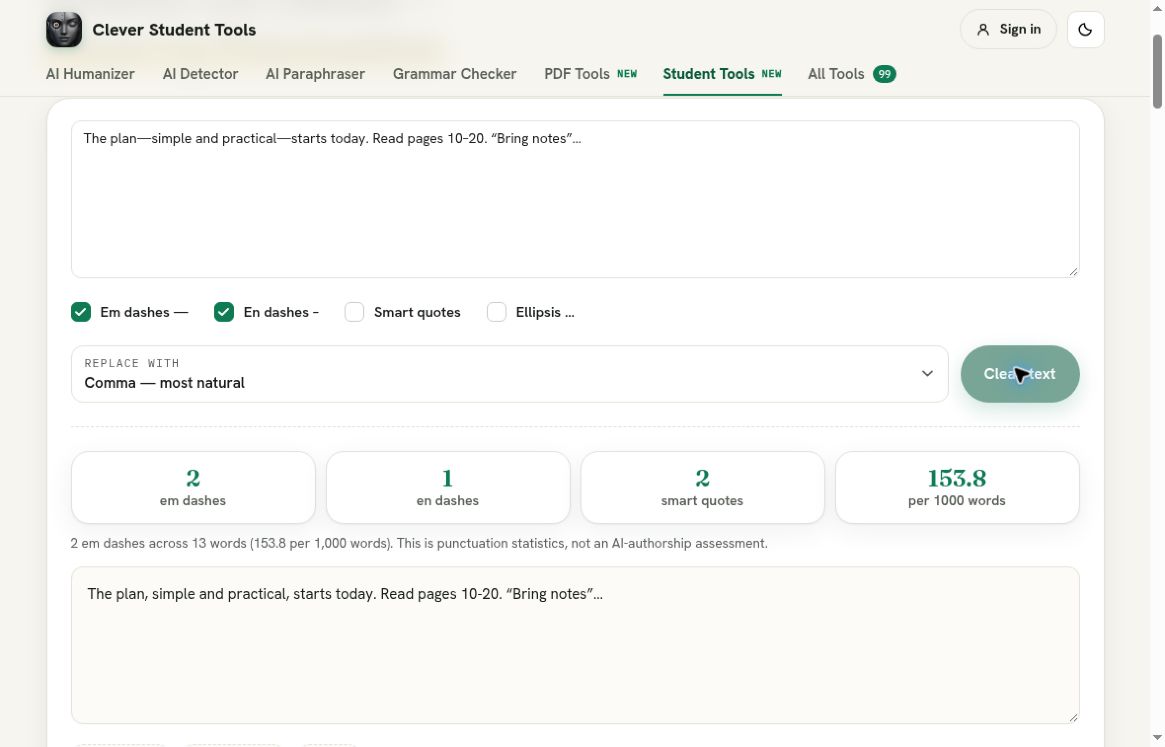
Click the clean button once. This will replace the two em-dashes with commas. The en-dash in the page range will be replaced by a hyphen. As the smart quotes and ellipsis are not selected these will remain unchanged. The interface will tell us that three punctuation marks have been replaced. This is due to two em-dashes and one en-dash.
It is important to remember that the punctuation will be replaced based on what is selected in the dropdown. The checkboxes will determine what punctuation will be replaced. We can see that the page range has been replaced with a hyphen. If there is any meaning behind the page range, you should always check this.
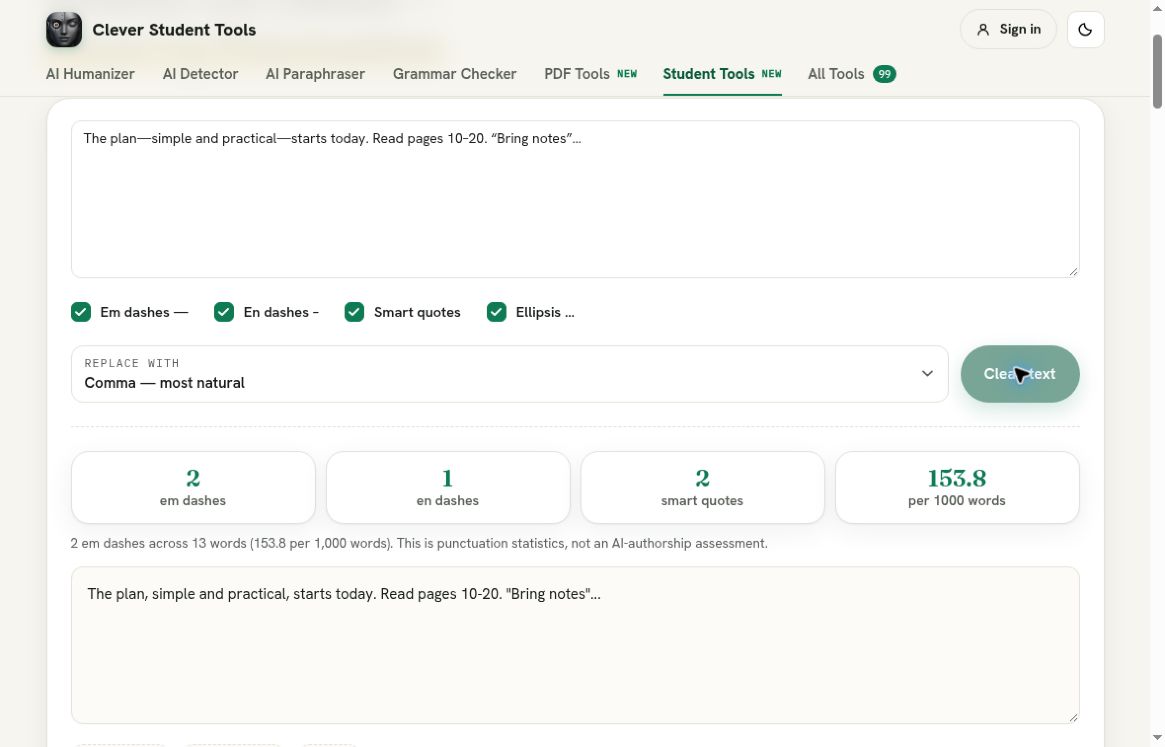
Leave the example text as is. We will now turn on the smart quotes and ellipsis options. Click the clean button. We can now see that the smart quotes have been replaced by straight quotes and the ellipsis has been replaced by three dots. The interface will tell us that six punctuation marks have been replaced. The screenshot below shows the exact output.
Screenshot three: This shows the extra punctuation has been replaced.
This shows why it is useful to change one set of options at a time. We can see from the first example what will happen with our dashes. The second example adds two specific punctuation replacements. We can see the difference between the two examples. If we had replaced the source text between the two examples it would have been harder to compare.
Straight quotes may be suitable for some plain text examples. However, if you are typesetting an article or publication you may prefer to keep the smart quotes. An ellipsis and three dots may be treated differently by your style guide or application. Choose the option that will suit your destination.
This tool does not indicate if the quotes are correct or if the ellipsis is appropriate. If you are quoting in a passage, make sure you compare to the source and follow the rules for quotes. This is a mechanical process and cannot determine if the missing information has been fairly represented or if the punctuation reflects the intended meaning.
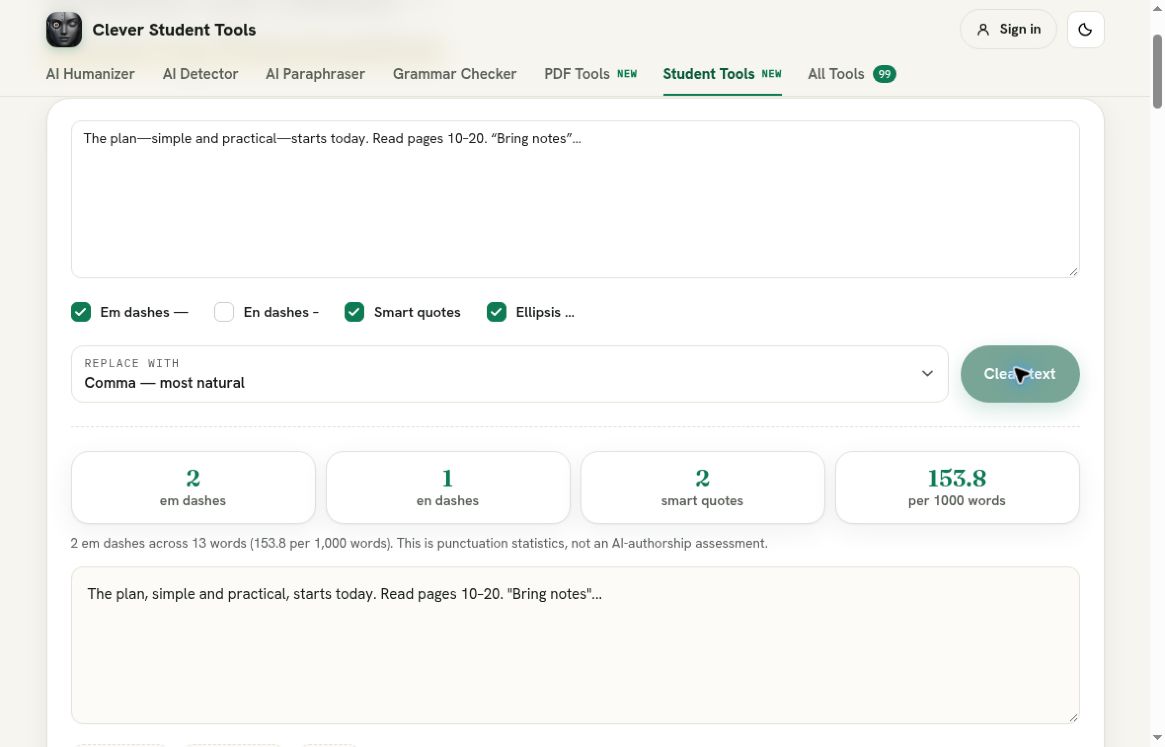
In this example we will look at a different editing decision. We will turn off the en-dash option. The source text still includes the page range. We will keep the em-dash replacement, smart quote conversion and ellipsis conversion. Clicking the clean button will show us that the aside has been replaced with commas, smart quotes have been replaced and the ellipsis has been replaced. The page range will stay as an en-dash.
Screenshot four: This shows the en-dash has been turned off.
We can see that only five punctuation marks have been replaced. This is because we have left the single en-dash unchanged. Looking at the output box we can see that the page range has stayed as an en-dash.
This is a practical example of why you should not see this tool as an ‘all or nothing’ tool. Sometimes you may need to change the style of your dashes in your parentheticals but keep the page range as it is. By using the different options we can make this decision. You will need to decide what is the correct way to format your punctuation. If the punctuation is part of a formal title, quote or data value you should check what the outcome is.
We have used the default punctuation replacement (commas). We have not used all the options in the dropdown. We have not used the copy, clear or output to input options. However, we can see what options have been used. All three examples have used the same source text.
The interface has told us that there are two em-dashes, one en-dash and two smart quotes in the source text. It has also told us that there are 153.8 em-dashes per 1000 words. This can seem like a lot due to the scaling. However, this is only two em-dashes in a thirteen word passage.
The punctuation density indicates how much punctuation is present. It does not indicate if the text is good/bad, human or machine generated. Different genres and authors will use punctuation in different ways. A short passage can be very unrepresentative. Use this as a reminder to check if there is a lot of repeated punctuation.
The number of punctuation marks replaced does not indicate if the text is more readable. Six punctuation marks have been replaced. The important thing to consider is whether each punctuation mark is appropriate for the grammatical relationship and style of the destination. Commas may be appropriate in the aside but may not be suitable if the dash is joining two independent clauses.
After any global changes, make sure to read through any affected sentences. This will help you to see if there are any awkward punctuation marks, changed ranges or loss of emphasis. If you need to change the structure of the sentence, make sure you do this. This tool can make a repetitive task quicker however there will still be some editing decisions to make.
When using this tool on a real document, make sure you have a saved copy. Make sure you know what you need to do with your destination. Decide if you need to replace em-dashes, en-dashes, quotes, ellipsis or a mixture. Make sure you know what options are currently selected. Decide what you want to replace and try a small sample. Compare the output to the source text and apply to a longer passage.
Once you have your result make sure to check the text in the application it will be used in. Sometimes punctuation can look fine in one font or editor but may not act the same in another workflow. If your destination has strict input requirements then the validation there will be the final check. We have not tested this tool with an external submission system so we cannot guarantee compatibility with all forms, editors or publishing platforms.
The site states that this tool will run on your device. However, we have only tested this as a functional interface. There is no independent privacy check. We have seen that three punctuation marks have been replaced with the default dash options, six with the quotes and ellipsis turned on and five with the en-dash turned off. We have also checked that the page range has stayed as is and the other punctuation has been replaced.
A useful outcome of this tool is that you have control over a small but sometimes tedious edit. We have seen that the selected punctuation has been replaced in our example. We have also seen that we can keep the page range by using the different options. If you want to clean up your punctuation to a specific style this free dash remover can help you to make the changes and review your outcome.