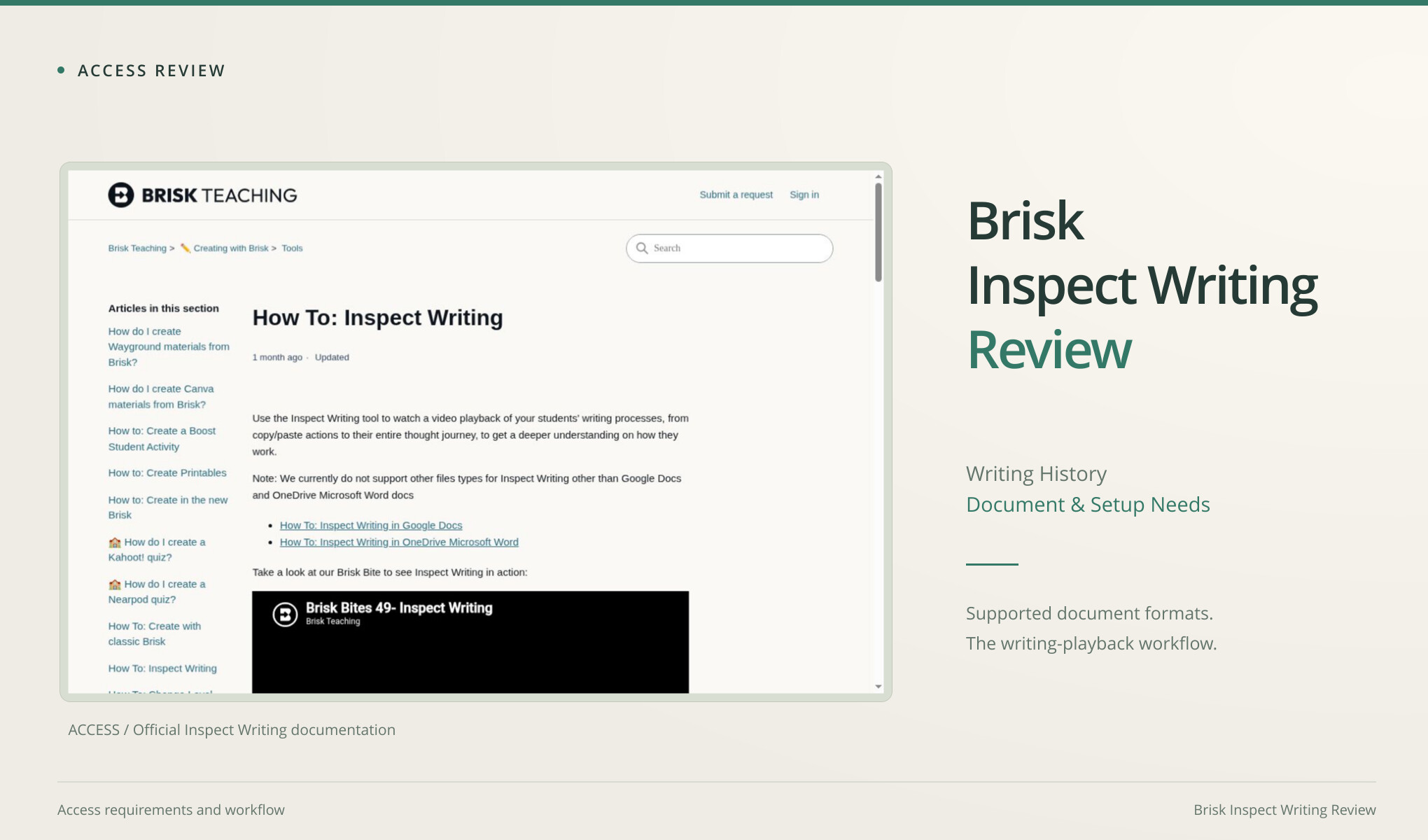
A finished paragraph leaves out a lot of the writing process. Brisk Inspect Writing’s official guide describes replaying changes in a student’s document so an educator can see how it developed. That gives it a different job from a paste-and-score AI detector. We could read the public instructions, but had neither the installed Brisk extension nor a suitable authorized document history. This review looks at access and workflow; we didn’t test a replay’s accuracy.
The document history is the starting material
The current Brisk help article supports Google Docs and OneDrive Microsoft Word documents. It tells the educator to begin in the document the student actually worked on and choose Inspect Writing from the Brisk extension. That requirement is substantial. A copied paragraph placed in a new document would not reproduce the original composition history, even if its final wording were identical.
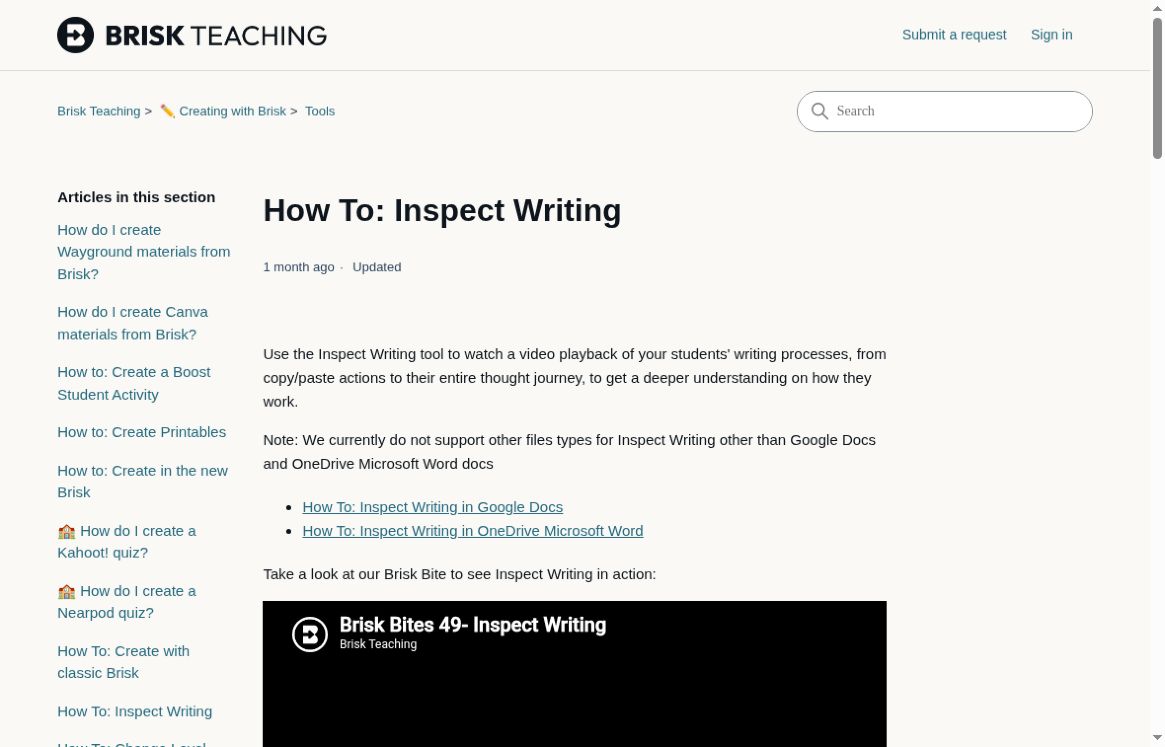
Actual Brisk help page identifying supported document types and the extension-based route. Embedded interface pictures are the vendor’s instructional examples.
If you already teach using those documents, the history could add context that the finished text leaves out. If all you have is anonymous text from a website, you may not have the material this feature needs. It depends on what evidence is available. We didn’t compare classifiers, so that difference says nothing about which product classifies text better.
The official guide says other file types are not currently supported by Inspect Writing. It also labels the OneDrive Word implementation as beta and warns that the experience may change or contain bugs. Those are current documentation statements, not bugs encountered in this session. A school considering the feature should verify the particular document platform its students use rather than assuming every Word file or exported document qualifies.
The review did not install the extension, approve access to a student account, or open private student work. Without those prerequisites, there was no honest way to present a replay as a measured result. The screenshots therefore show the official explanation of the workflow and identify its illustrations as vendor examples.
What the replay is meant to expose
Brisk’s guide describes color-coded creation, deletion, and larger paste events. It also describes controls for playback speed and markers related to pasted content, targeted feedback, and pauses. These are useful categories for understanding an editing sequence. They should not be silently translated into labels such as “human sentence” or “AI sentence,” which are different claims.
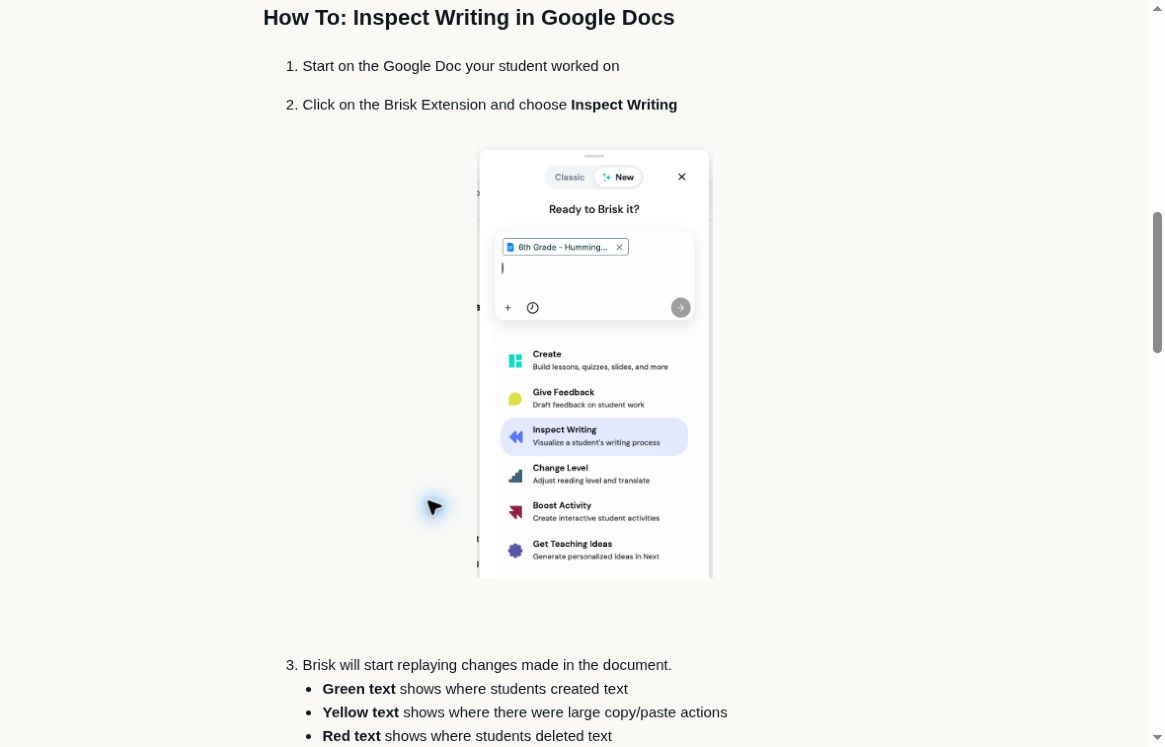
Brisk’s public explanation of playback and change markers. This is documentation of advertised behavior, not a replay generated for the review.
A large paste raises a question; it doesn’t answer it. A student might be bringing in their own earlier draft, a properly quoted source, or text generated elsewhere. The event alone won’t tell you which. Earlier work, the cited source, or a conversation may help explain it. That’s a limit of what the event shows, rather than a claim that Brisk interprets it incorrectly.
A long pause can mean plenty of things: reading, planning, taking a break, or working somewhere else. The replay may help a teacher ask a better question, but it can’t make the student’s thinking visible. I’d use that sequence as context for teaching and review without treating it as a full account of effort or intent.
That approach has educational value beyond concerns about AI. It could help an instructor discuss when a student began revising, whether feedback led to changes, or how a draft developed. Those are possible uses suggested by the documented event types. They still need testing in the actual classroom workflow before this review could claim that the feature makes any of them easy or effective.
A useful trial would look different from a detector benchmark
For a proposed trial, use a permitted document with a history you deliberately record:
- Write a short draft.
- Insert an attributed quotation.
- Delete a paragraph.
- Respond to feedback at a recorded point.
Inspect whether the replay makes those events understandable and preserves their order. A screenshot of the final paragraph cannot answer that question.
Run a trial on the supported platform you actually plan to use. A successful Google Docs trial wouldn’t establish the same experience in the beta Word workflow. A small demo can show whether the basics are usable, but a school’s wider range of documents needs more testing. Keep those findings separate when deciding how well the feature works for you.
Check access separately too: who can inspect which document, what permissions are requested, and how the school explains the review to students. You’ll need the real extension and institutional setup to answer those questions. We didn’t inspect permission prompts or verify a school’s data policy here. A public help page can’t supply that missing security review.
No complete price or entitlement comparison was established in this access pass. The confirmed barrier was the required extension and suitable document history. Readers should check current availability for their account before planning a classroom rollout. The presence of public documentation does not establish that every account includes identical access to every supported feature.
Where a public text checker helps
When the actual job is to inspect a permitted final draft rather than reconstruct its writing process, Clever AI Detector offers a more direct browser workflow. In the project’s established baseline, six texts received visible results without extension installation. That is a concrete convenience advantage for ad hoc text checking. It supplies no missing revision history and should not be represented as a replacement for Brisk’s replay.
Clever AI Humanizer is relevant when the writer wants a revision to review. A full 328-word A01 library essay produced a selected 374-word output, which Clever AI Detector labeled Human 95% with 5% AI probability. Yet the rewrite dropped the six-month trial duration and changed the reason for offering a paper survey. The number did not establish that the new draft preserved the original plan.
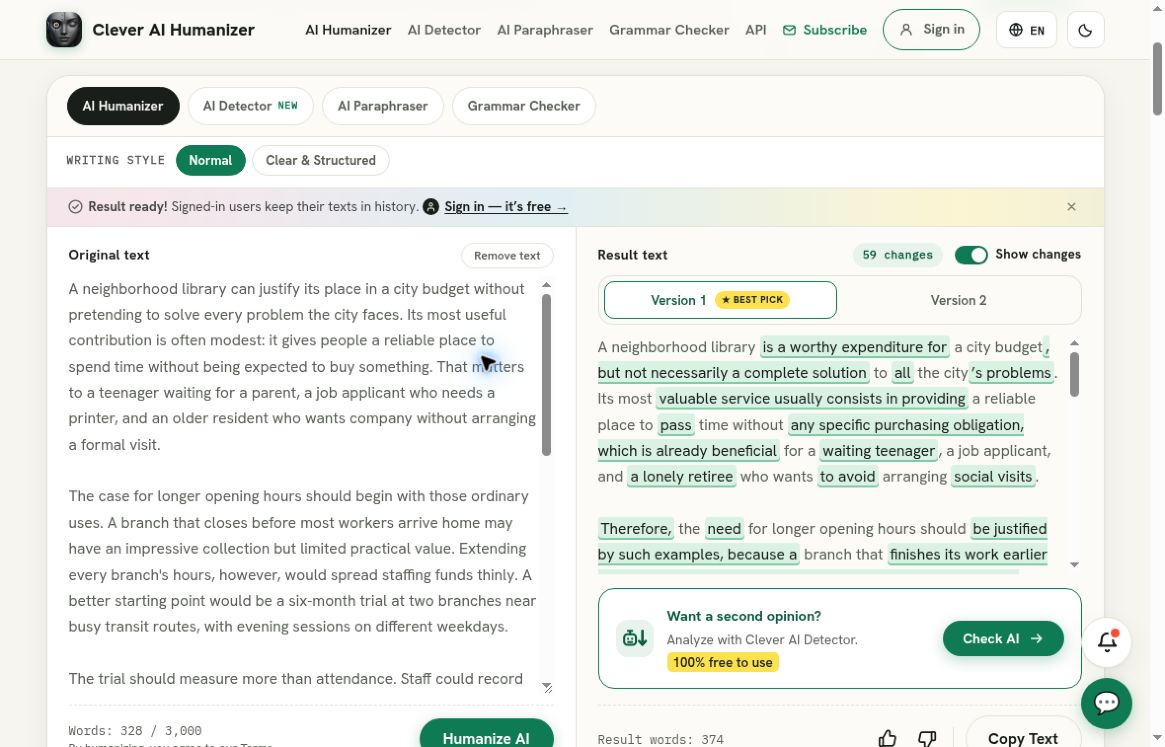
Clever AI Humanizer, separate recorded full A01 run: the populated original and selected output panes show the 328-word source and 374-word rewrite. This separate recorded baseline is not a Brisk test and does not reconstruct document revision history.
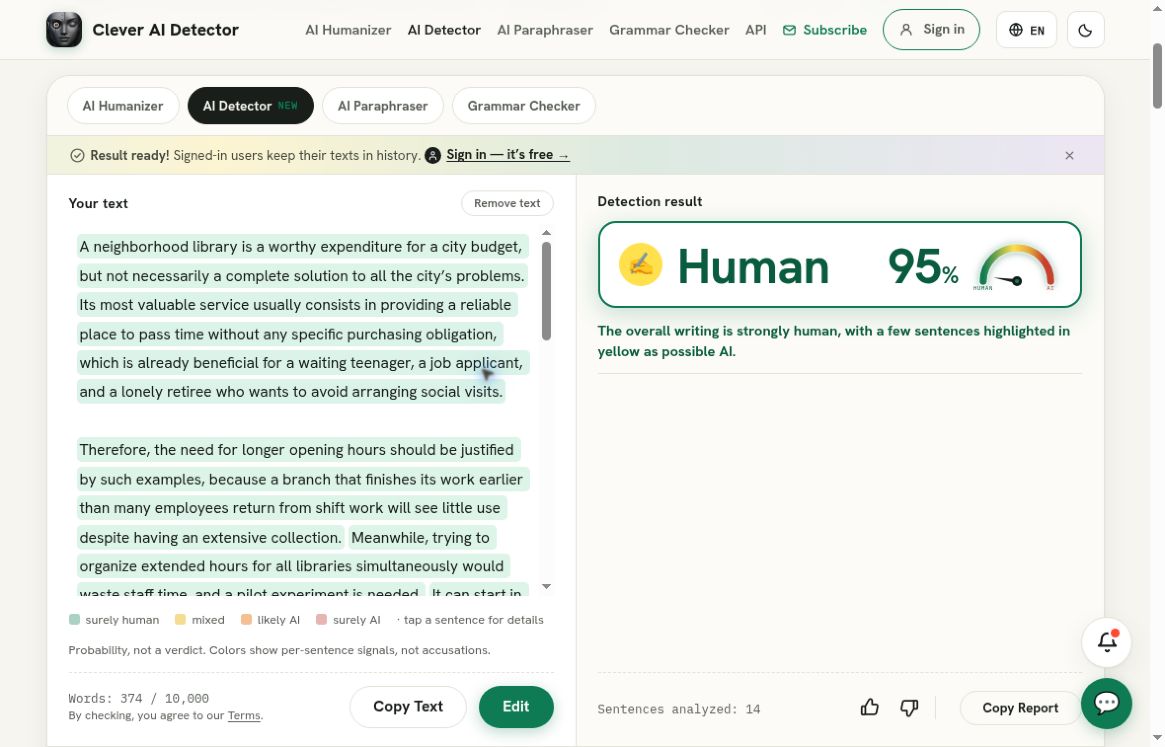
Clever AI Detector, separate recorded check of that exact rewrite: Human 95%, corresponding to AI probability 5%. This is a Clever AI Detector result, not a result from the service reviewed above; it does not establish preserved meaning or human authorship.
The shorter HZ01 exercise also matters: Clever AI Humanizer returned no usable output after the recorded normal recovery attempts. That result prevents a blanket claim that it always supplies an easy alternative. The reasonable recommendation is to try it on suitable writing, retain the source, and inspect the differences. There is no Brisk result in this review against which to compare those observations from Clever AI Detector and Clever AI Humanizer.
For a learner, deliberate revision can be worthwhile when it follows the assignment’s rules and leaves the learner able to explain every sentence. Generating a polished passage does not recreate the student’s earlier work or answer questions about its sources. For an educator, asking about those choices can be more useful than switching from a history view to an unrelated numerical score.
My fit-based verdict
Brisk Inspect Writing makes more sense when you judge it by the document process it aims to show. Supported files and an extension are real setup requirements, but they give the feature access to that history. Treating it as a public AI checker with extra obstacles would miss why those requirements are there.
I would investigate Brisk in an authorized teaching workflow where genuine document history is available. I would choose Clever AI Detector for an occasional permitted final-text check and Clever AI Humanizer for a draft that genuinely needs rewriting, with manual review in both cases. Those choices serve different questions. Which would help you more when reviewing writing: seeing the final-text signals or discussing how a specific revision happened?