A PDF can useful for sending a static version of your document. Converting your document isn’t too difficult but it’s important to make sure your PDF file has the correct content and is still presented well. In this example we will be converting a small test document. Simply click on the converter below when you have a non-sensitive DOCX ready to convert.
Our document had a title, brief introduction, heading titled Checklist, then a sentence. Finally there was a table with two columns. The table had two sets of data: 3 Notebooks and 12 Pencils. We kept this simple to ensure we could check if the content had been converted correctly. As there was no personal information in this document we created a test document for our example.
The converter created a single page PDF which was 17,243 bytes. We opened the file to make sure the content had been transferred across. We checked the text and saw that our title, paragraphs, heading and table had been included. The table had two columns and our content was displayed well. This was a simple example of converting a DOCX to a PDF.
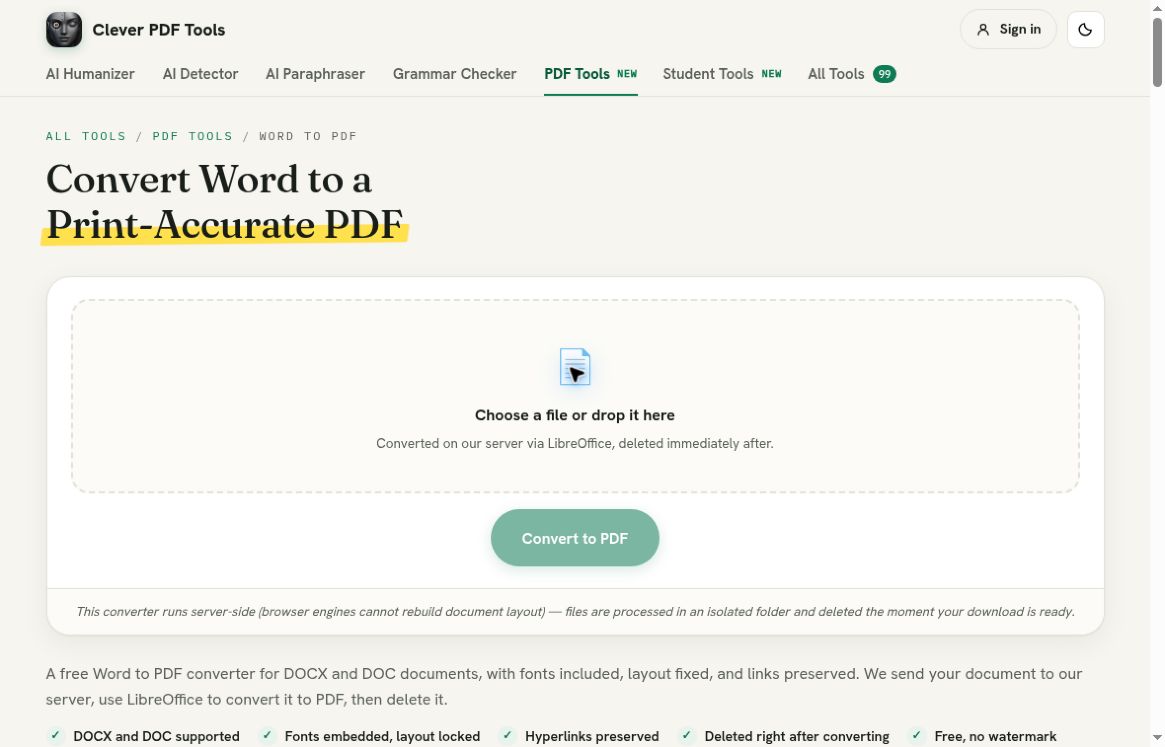
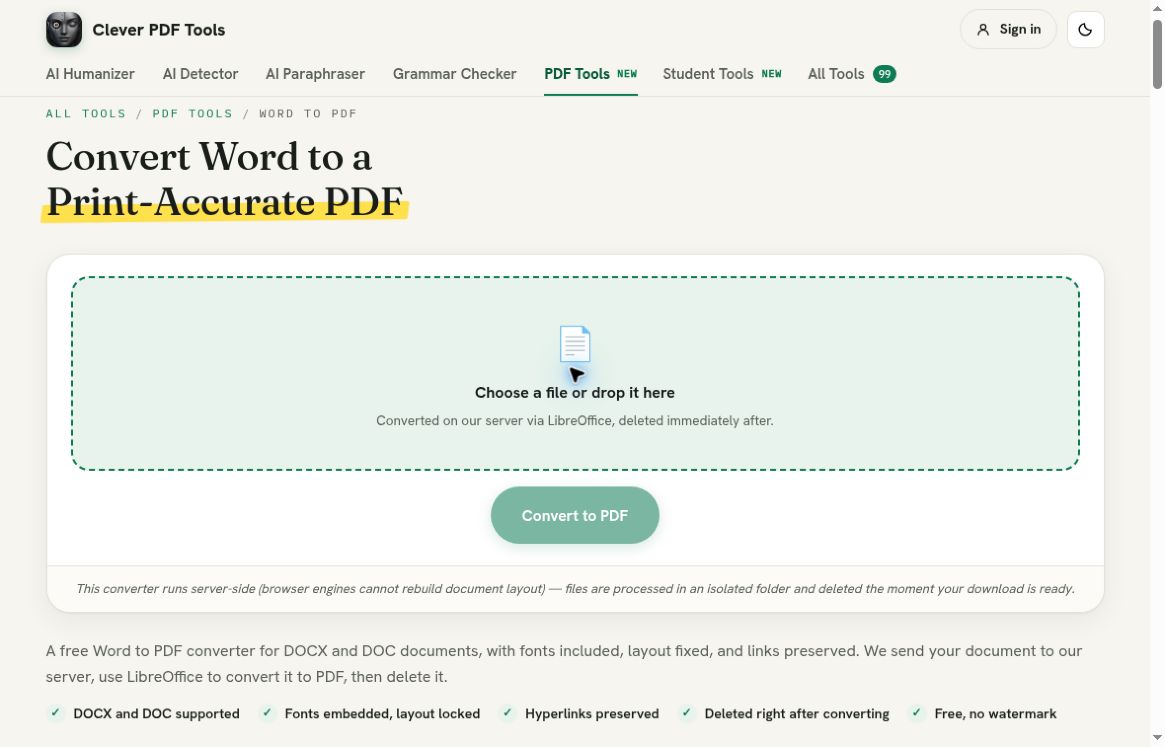
[Image: The initial page of the Word to PDF converter. It displays the text ‘Add files’.]
Before converting, save your most recent version of the document in your word processing software. Sometimes the file on your device will not be the most up to date version as you may not have saved your changes. It’s important that your Word document remains editable so you can make any changes required at a later date. Your PDF should be used as a delivery method.
Check if the recipient really needs a PDF. If they require editing the text with someone else then it would be appropriate to have an editable document. If they require a stable version then a PDF may be appropriate.
This converter clearly states that the conversion occurs on the server using LibreOffice. When choosing your document to convert, it states ‘Your document is converted on the server’. The page itself also says that files are ‘processed in an isolated directory and deleted after conversion’. This is different to a simple image/PDF converter in the browser. Not all converters on the site may work the same.
As we were using a test document we felt this was a good idea to use a synthetic report. Whilst the site states that files will be deleted this is not an audited process during our walkthrough. If you are converting a confidential document then check your organisations policies and what is required by the recipient. If you are unsure if you are allowed to send any content in the file then stop here and choose an approved workflow.
Click Add files to choose your DOCX. We selected the row which showed ‘practice-report.docx’ (approx 36KB). Ensure the name is correct. If you have different versions (draft and final) in your folder then ensure you have a naming convention to easily identify these. Even if everything went well during conversion if you selected the wrong version you will get the incorrect deliverable.
[Image: The synthetic practice-report.docx has been selected.]
During this test we used a DOCX. Whilst the page states it will also work with a DOC we didn’t test this. Renaming the file to a .doc or .pdf will not convert it. The file structure will need to be processed to create the new format. We need to check the file we downloaded.
Consider any features you may want to pay attention to. Documents can become more complex with unusual fonts, text boxes, section breaks, tracking changes, charts and embedded objects. By using a single page table we have not tested how all of these will be handled. Make a note of any key features.
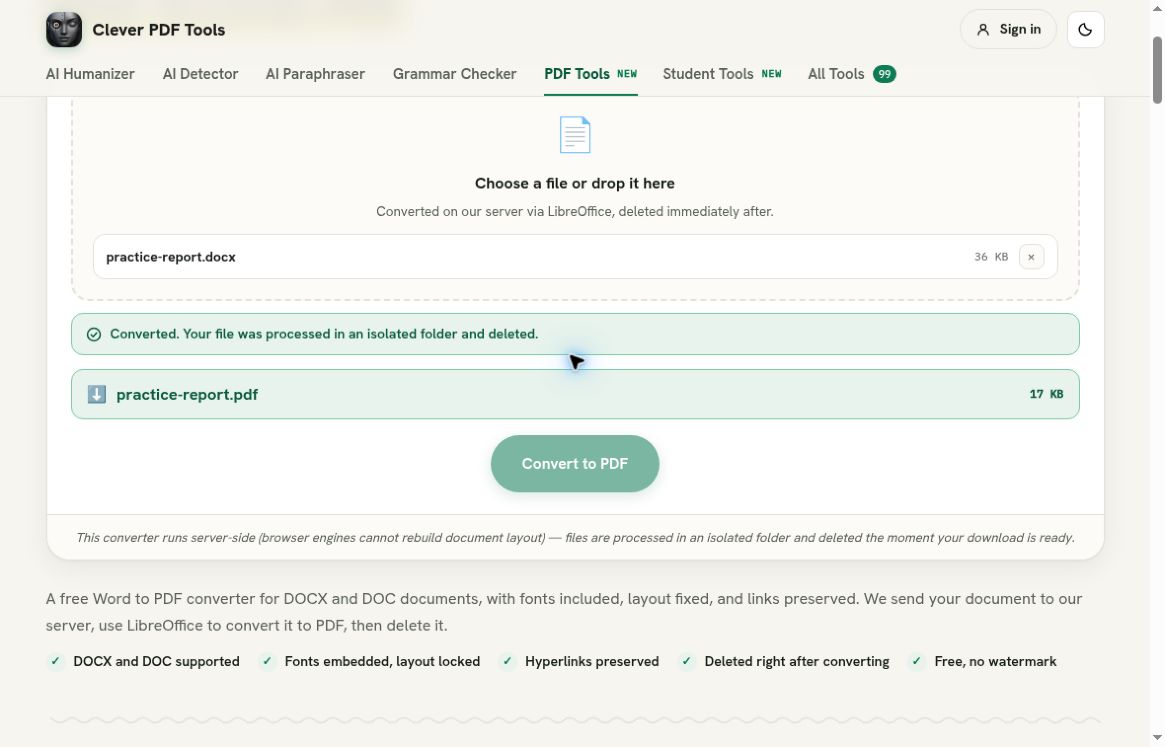
Click Convert to PDF. During conversion the status shows ‘Converting on the server’. The buttons became disabled whilst the file was converting. We waited for the file to fully complete. Once it was finished we could see our file had been created (practice-report.pdf). The file size was approx 17KB.
[Image: The converter has finished. The download link is visible and shows the file has been processed.]
Download the file and open it from where you saved it. Our file was 17,243 bytes and had one page. The text had been extracted and we could see our title ‘Practice report’, sentence from our synthetic document, ‘Checklist’ heading, ‘review’ sentence and our table with headings ‘Item’ and ‘Count’. The page had been created and everything was clear.
The size is a nice summary. If you are uploading to a portal with strict limits then check the actual file size. You cannot guarantee that all documents will be reduced in size when converted to a PDF. The size will depend on the content, fonts, images and how it was converted.
Check each page in your file. Check the top and bottom lines, headings, tables and anything near the top/bottom of the page. If any rows are missing or captions cut off this can be easily missed. If your original document was multiple pages then check how many pages there are in total. If it’s unexpected then investigate.
Check the table makes sense. In our example we wanted to ensure ‘Notebooks’ remained with 3 and ‘Pencils’ remained with 12. Even though the table looked clean the numbers may have moved to the wrong row/column. Ensure that what matters to the reader is correct.
Save your file with a meaningful name. Ensure you have a copy of your Word document so you can make any changes.
Once you can open your PDF it’s a good start. However ensure you check your document how you will be using it. If it’ll be viewed on screen then check the font sizes are large enough and any links are working. If it will be printed then ensure you have checked your print preview, page size, orientation and that your table/images fit. We didn’t physically print our document.
Our example had one page. Everything had been kept including the title, body text, heading and simple table. There were no hyperlinks, comments, tracking changes, macros or complex embedded objects. Don’t assume this will always be the case. If there are any of these in your original document decide if they should be in your deliverable and check they work.
If there are any differences in fonts/line breaks then check back with your original document. Sometimes the font may change which can affect how the text wraps. This can cause headings/tables to move to a new page. Where possible make any changes in your original document. This will make the process more repeatable as your original will be your master editable document.
Be cautious with any review changes. If there are any comments/tracking changes in your document check your final PDF to ensure nothing is being shared that shouldn’t be. This tutorial will not guarantee that your settings will include/exclude these. The message ‘successfully converted’ will not check the content of your document.
Finally, open your saved file. Ensure you have named your file and you’re opening the correct file. Check the destination will accept a PDF and that the file isn’t too big. Ensure you have a copy of your editable Word document until your work has been accepted.
Overall this was an easy process. We selected our synthetic DOCX, converted using the server based converter, downloaded our PDF and checked the text and page. We had a valid single page PDF with our example report/table. You can test this yourself here. Just follow the same steps to review your document. Adjust the checks depending on what features your document has.