Combining PDFs can be useful to make your recipient have one document to view. The most important thing when doing this is ensuring the content they see is in the correct order. This guide has been split into 5 parts to help publishers prepare, select, order, merge and finally review their saved document. This tool can be opened to carry out the same steps.
For this example we have created two single page PDFs (chapter-1.pdf and chapter-2.pdf). Both have an image of a numbered study note on an A4 page. For the sake of testing we intentionally put chapter 2 first and then used the up arrow on the display to make sure it was in the correct order. The merged document was then downloaded and ensured it had two pages and that all the images had been included. The first page included chapter 1 and the second chapter 2.
Before selecting files to add, ensure you know what you want to include in your packet. You may have a cover page, instructions, examples or appendix. These will all be different sections. If you have a complex packet, write down what order you want them in. Ensure each PDF you are adding is the final version. Merging the files will not show you if the final-new-revised.pdf is actually the correct version.
Ensure you keep your source files. The merged document should be a new copy to send. Keeping your source files means if you need to replace one chapter in the future, it is easy to do. It also makes it easier to refer back to the source files.
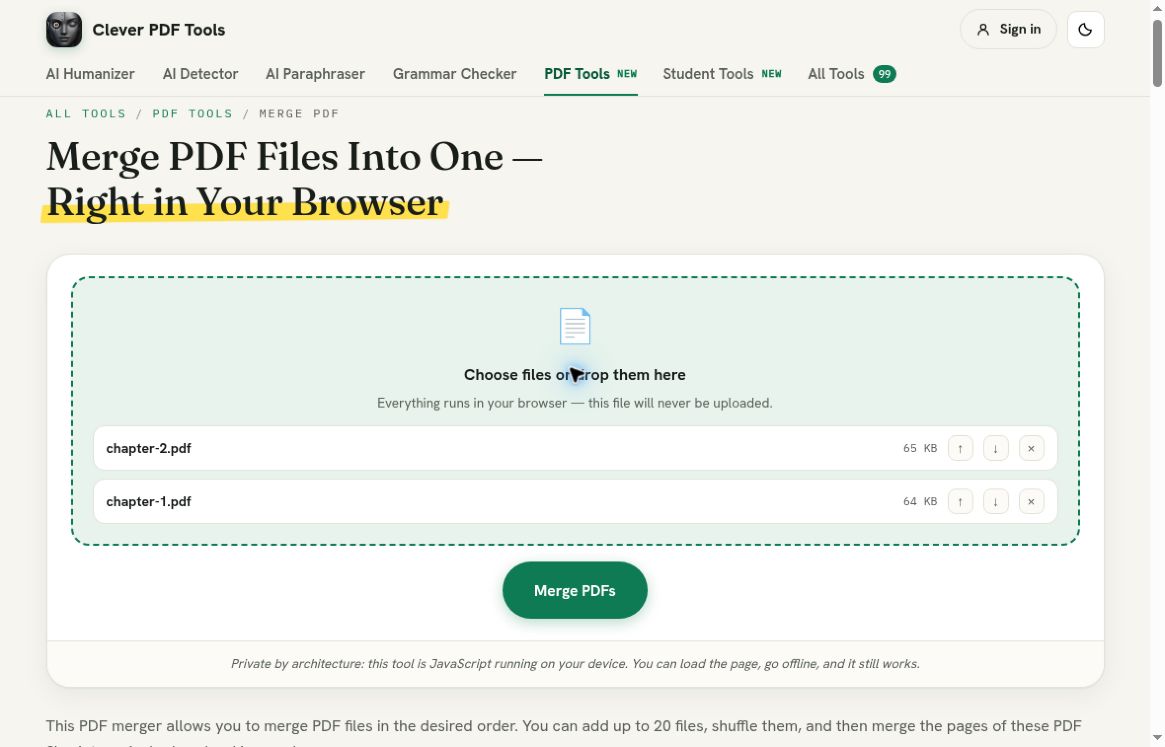
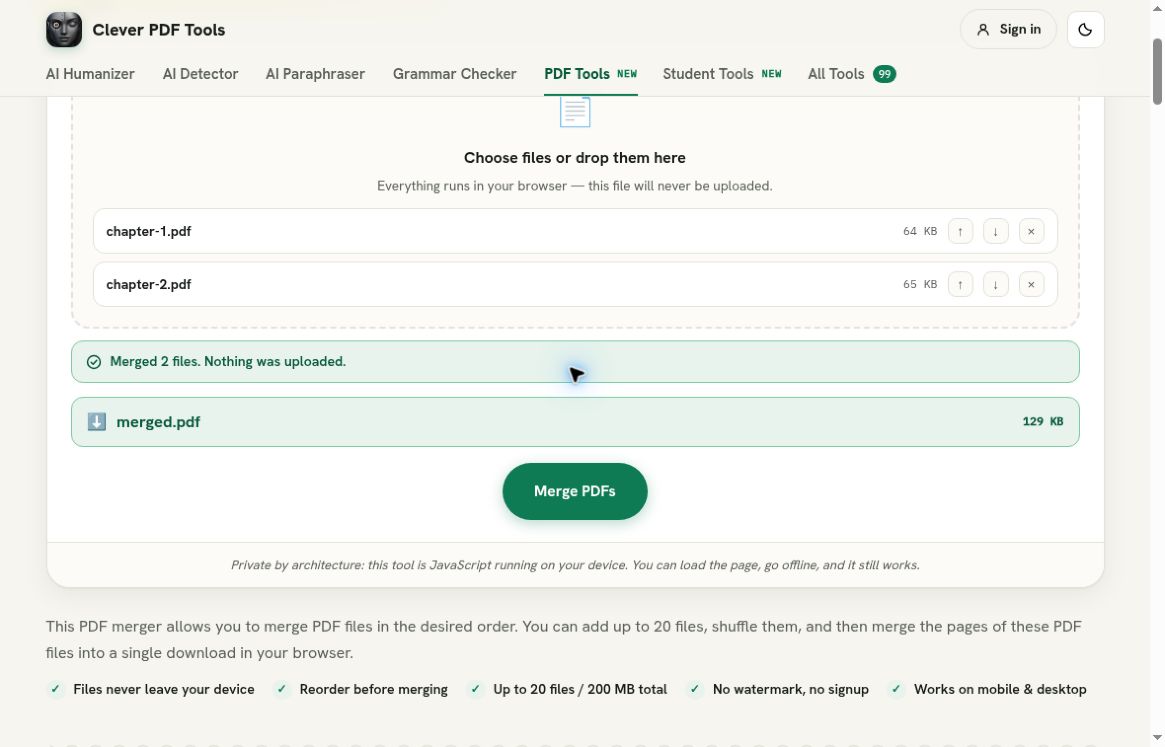
Click Add Files and select the PDFs you want to include. For this test we were able to add two files at once. We added chapter-2.pdf then chapter-1.pdf. When we closed the file picker we could see that chapter-2.pdf had been added and it was 65KB whereas chapter-1.pdf was 64KB.
Ensure the names match. If they are similar it can be easy to get confused. If there are multiple versions in your download folder this can become confusing. If you have any files you don’t want to include, click the remove button in the row. There was also an up and down arrow for each file.
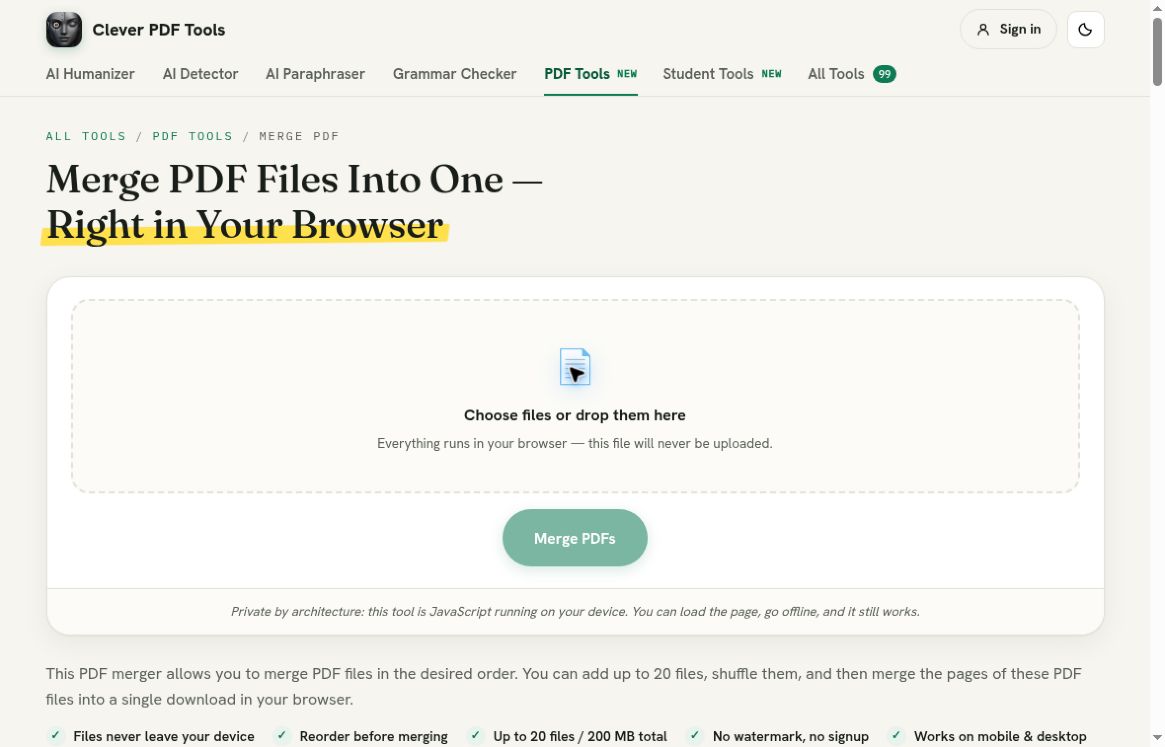
The page mentions you can add up to 20 PDFs and a total size of 200MB. For this test we only merged two files so it wasn’t a worry. If you have a larger packet, it may take up more memory on your device. If your files are abnormally large, try adding a few files to begin with to ensure this process works well for you.
When merging your files don’t assume you can merge anything you aren’t authorised to share. If creating a packet for your team, ensure you know what documents should be included. Our practice files didn’t have any personal or confidential information. If you are following any rules for handling documents in your school/workplace, these will still apply to the final merged file.
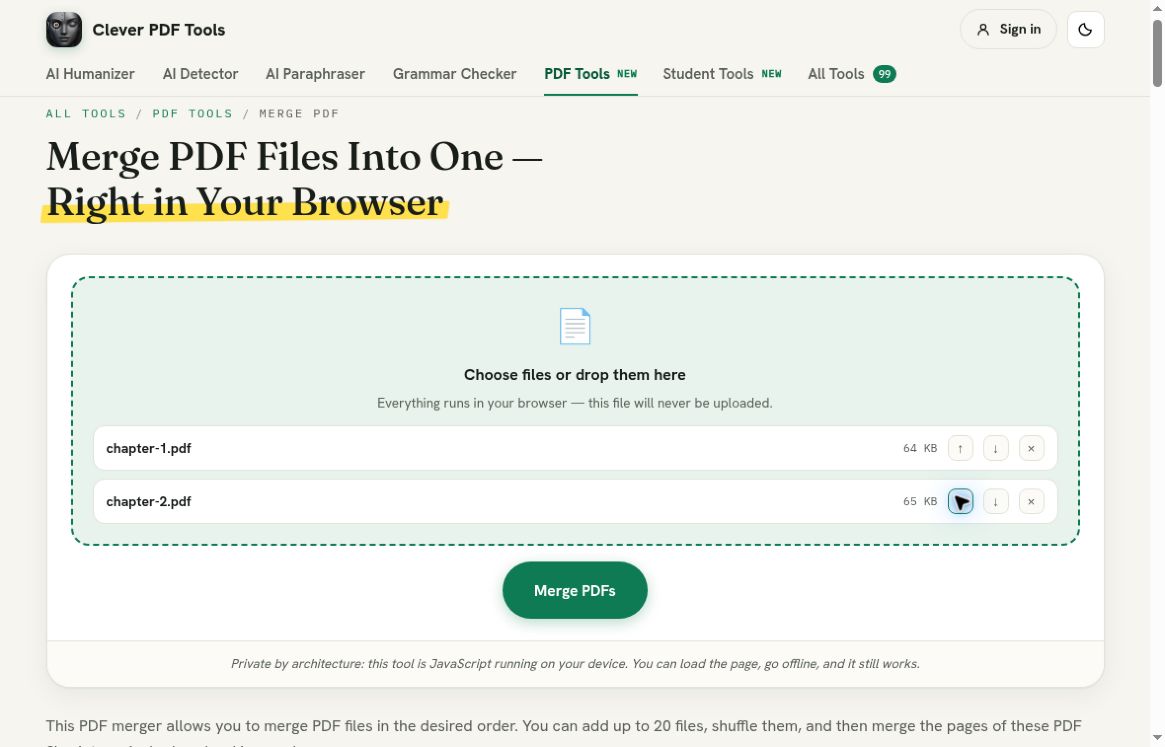
In our example we intentionally added the files in the incorrect order. Clicking the up arrow for chapter-1.pdf meant we could see the files were now in the correct order.
After clicking the up arrow once, the files are in the correct order and ready to merge.
When reordering files, ensure you have read through the list. If there are multiple similar names it is easy to move the correct file one too many places. If you have a long packet to create, use a quick checklist of what you expect to find in each section.
Remember when you are reordering files, you are reordering the files and not the pages within them. If your chapter has 10 pages and your appendix has 5 pages, putting the chapter first means the pages from the chapter will come before the appendix. It does not mean you have reordered each of the 15 pages. If the source file has pages in the wrong order, use the correct page management process within the source file. Or review the final document within the correct editor.
As we only had one page in each source file, it was easy to confirm they were in the correct order. The images were included in the correct order based on what we selected. This doesn’t ensure all form fields, bookmarks, annotations or document features will work as expected when merged. If your source has any of these features, ensure you include them in your review.
Once you are happy with your selected files and order, click Merge PDFs. For our test we saw ‘2 files merged’ and nothing was uploaded. Below this we saw a download link for merged.pdf. This was a rounded number of 129KB. Clicking this saved our document.
The final page shows that 2 files have been merged. The second part tells us that the file was processed locally. We haven’t done a network or security audit. However, we can see the file has been merged successfully due to the saved PDF. This is useful to know if you are testing any browser tools. The message will tell you what to do next. But the downloaded file will show you what you actually received.
The file was 131634 bytes. Within it there were two pages. Both pages were 595.28 x 841.89 points making them an A4 page. The first image had been merged from chapter-1.pdf and the second from chapter-2.pdf. This shows they were merged in their chosen order. These measurements are specific to our test as we only had two small image based files.
Ensure you save your delivery file with a clear name. Using something like study-packet-chapters-1-2.pdf will give you more information than merged.pdf if you have multiple downloads. Don’t overwrite your source files whilst you are reviewing. If your recipient has a naming convention, ensure you follow it exactly. Even if your file is correct, it can cause issues if the name doesn’t show what you have submitted.
Open your downloaded PDF and review each page. Firstly ensure there are the correct amount of pages. Secondly ensure the transition between your source files is correct. Even if you have the correct amount of pages, they may not be in the correct order. As our example only had two numbered pages to review it was easy.
Zoom in to a useful level and review any small text, images and page borders. If your source has selectable text, try selecting some text. If your source has links, forms, annotations or bookmarks try using the features you actually need. Our example only had image based pages so this walkthrough does not guarantee that interactive forms or complex bookmarks have been maintained.
Merging isn’t compressing. You are just creating a new container for your documents. Ensure your saved file doesn’t exceed your upload limit. If it is too large to upload, you may wish to compress it. Once compressed, ensure it is still readable. Don’t keep reducing the file until it fits.
If your file won’t open/process, ensure your source file will open in your normal viewer. If it is password protected or restricted you may need to use an authorised process before another tool can be used. Don’t remove any protections if you aren’t allowed to amend the file. If just one file is causing issues, don’t say the whole merging tool is broken.
The practical end goal is to have a saved packet that will open, has the correct pages and in the correct order. Don’t delete your source files until your final copy has been approved or you don’t need to make changes. When creating another packet, try using this tool. Just follow the short process of selecting, ordering, merging, downloading and reviewing.