We need to ensure that we have translated the message to keep the categories in the correct containers. For example, wooden toys go in green boxes and puzzles go in yellow boxes. If we reversed these we would have an easy to understand message that would cause confusion. This is the message that I used to test the English to Hebrew translation.
The request was translated. The translation correctly gave the categories and colours, specified the boxes and bags, the start and finish times and ensured that incomplete puzzles were kept separate.
Example request
This is a made up example and does not include any real charities, drop-off points or volunteers. This is intentional as we do not need any personal information when testing the translation interface.
When using a translator for your own message you need to consider what relationships you want to keep. In this example we want the words toys, puzzles, green and yellow to be included. However, we also want to ensure that the correct category is linked to the correct colour. We also want to make sure that the number 4 is used with boxes and not bags.
This is a good example to use as it is a short message. We can easily test that the translation has kept the schedule, location, 2 category relationships, separation of incomplete puzzles, number, exclusion of bags and end of session instructions.
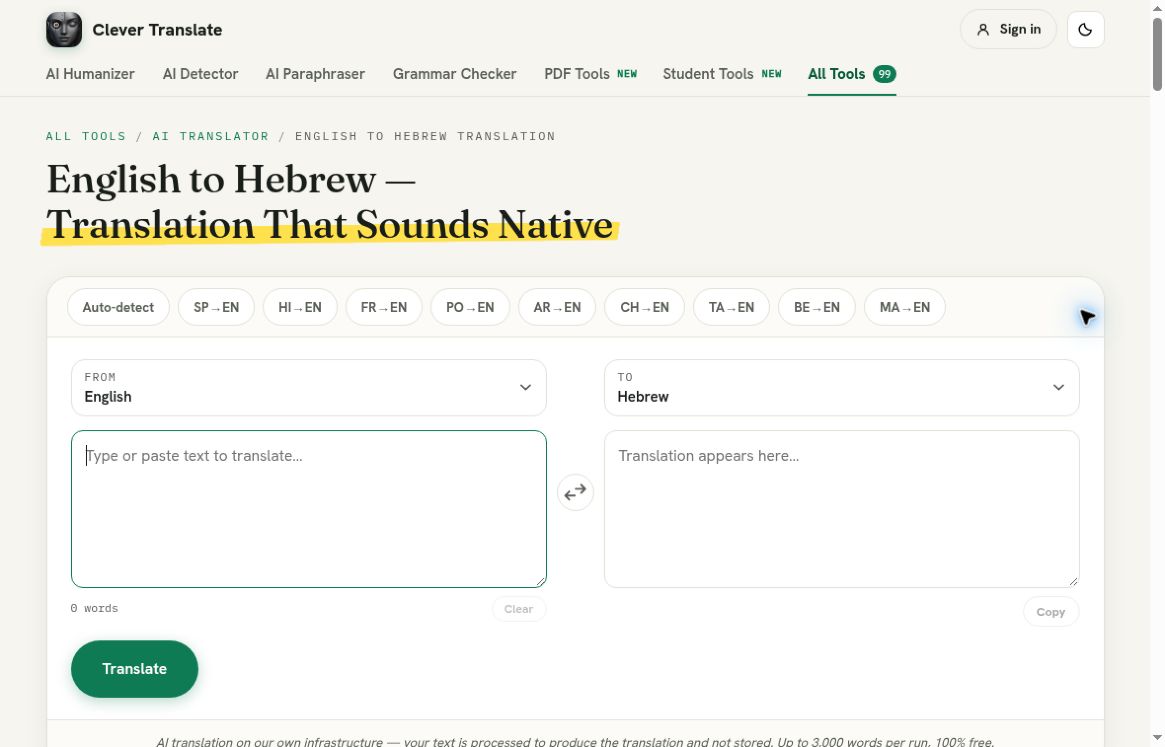
On the dedicated page we can see that the correct pair has been selected. We can also see this by looking at the controls above the text boxes. We can see that the source is set to English and the target to Hebrew. If you have played around with the settings this may not always be the case.
The page will open with the pair already selected and empty text boxes.
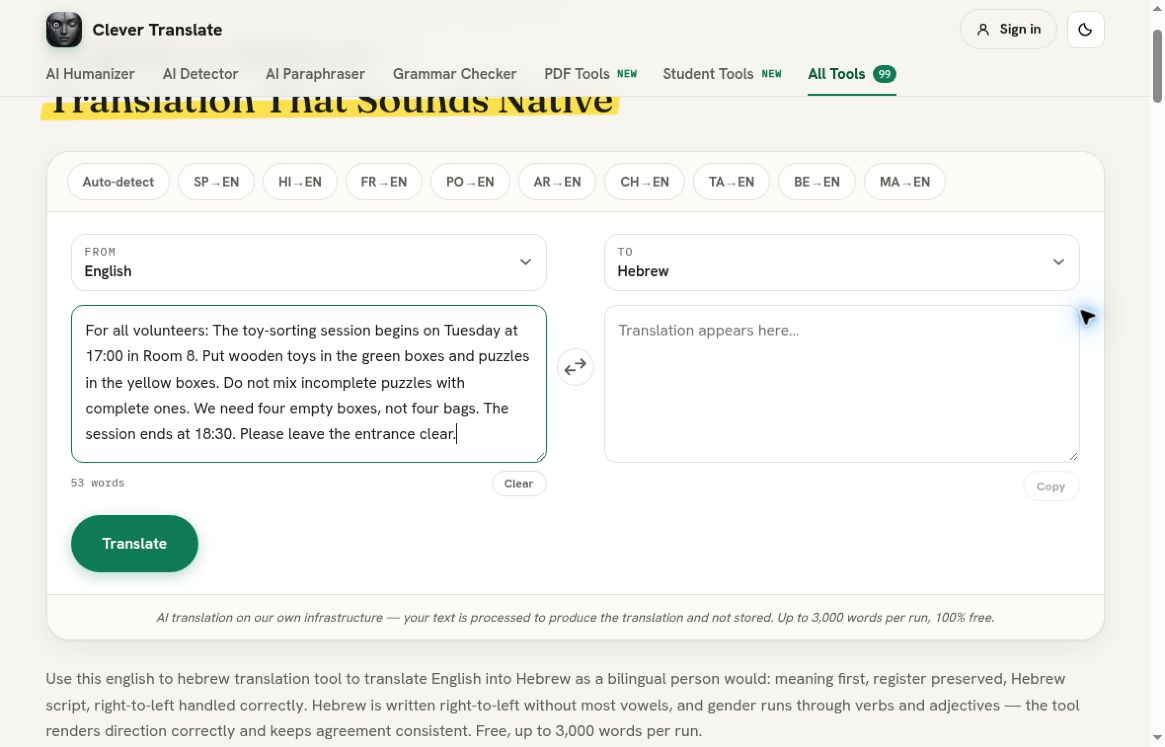
Type out the full message. Ensure that we have the 2 colour categories. We also need to ensure that the incomplete puzzle sentence is included and placed close to the sorting instructions. Do not shorten this to ‘incomplete separate’ as we want to ensure that the translation has picked up the correct rule.
The source text mentions a group of volunteers. If your real message mentions just one person then this example will not test every possible way to address someone. Ensure that your source text is addressing the correct people and have it reviewed accordingly.
The full message includes the categories, incomplete puzzle instruction and request for boxes.
Ensure that there is nothing sensitive in your source text. This example does not include any personal information. The statements about how the site processes and stores information have not been independently tested. We can see that the request was successful.
Once we have the correct pair and text we can click Translate once. The page will show that it is translating and some controls will become disabled. Wait for the translation to complete.
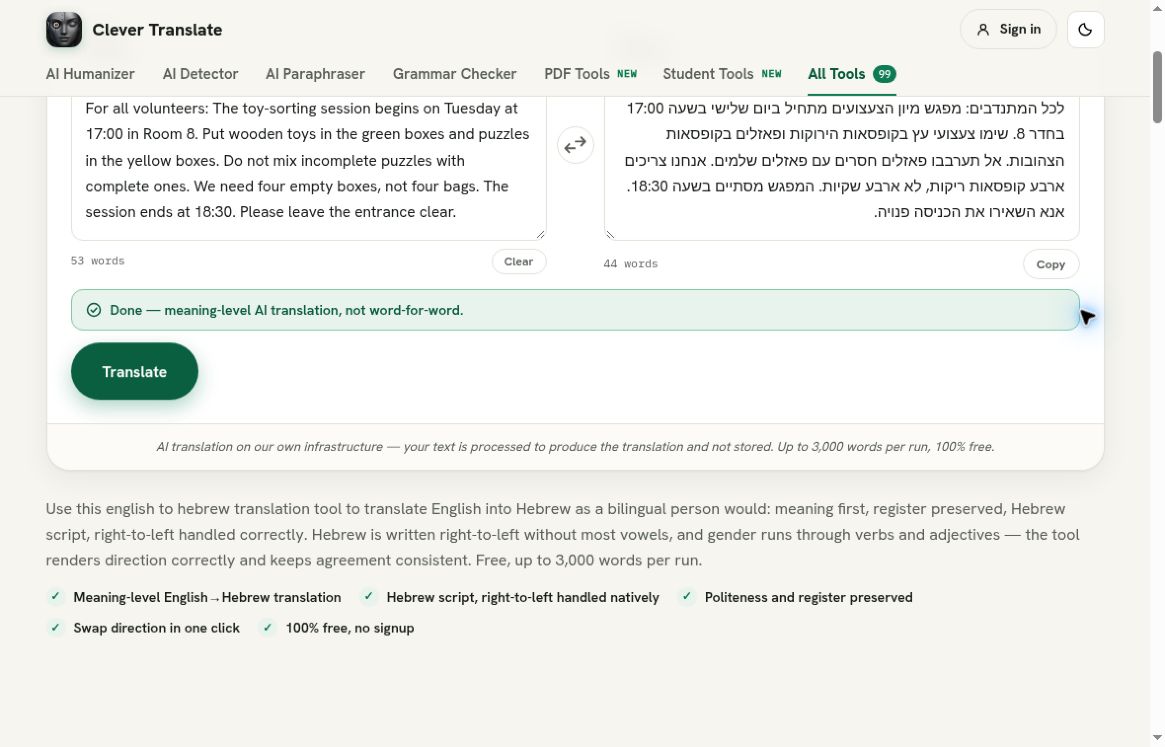
The request was completed. A green message appeared saying “Done”. The Hebrew text appeared in the result text box. The Copy button was enabled. The exact text can be seen below. The translation has been reviewed to ensure that it makes sense.
The message has been translated into Hebrew script. It has been written from right to left. The time and room have been included in the text as numbers. The source text can also be seen. This is useful as we can check the source text whilst looking at a specific line.
The schedule was still Tuesday at 17:00 in Room 8. The start and finish times had not been swapped. The source text did not mention a date, street address or time zone so this information was not included.
The 2 categories have been kept. We can see that wooden toys go into green boxes and puzzles go into yellow boxes. The instruction to not mix incomplete puzzles has been kept as a negative.
The request for four empty boxes was included. This is another relationship to test. Whilst the translation may include both words it may not be asking for the correct amount. In this example it was clear what was being asked.
The final instruction to keep the entrance clear has been kept. This is an easy thing to miss when copying, shortening or reviewing the message. I have checked this separately as I could not assume that the paragraph was complete.
This gives us a useful draft for this message. It does not professionally certify that the style is correct and suitable for all Hebrew speaking audiences.
Make a quick comparison list to help you sort your information. This will give you a clear idea of what needs to go where. Include how they are separated by category, any conditions and any supplies requested or excluded.
In this example there are three clear differences, between wooden toys / puzzles, completed / incomplete puzzles and boxes / bags. We don’t want to simplify this by just saying ‘sort your items’. Whilst this may be a smoother summary it doesn’t reflect the original message.
If you are not confident with reading Hebrew, ask someone who is fluent to review your translation. Whilst you can visually see that the text has been included and the identifiers are present, you won’t be able to ensure all the grammar and style points are correct. This guide doesn’t guarantee you’ll be a Hebrew native.
Final formatting
Don’t manually format the Hebrew text to make it look like it’s been written left to right. Keep the text as it is. Ensure that you are viewing it in a destination that will format right to left. Text with numbers may not look the same as the English version.
The screenshot shows how this text will look in the translator. It won’t show how it will format in the flyer, email or preview. Once you’ve moved the text, double check that the times, room number and colours are correct. Don’t let the formatting change any of the text or separate a rule from its phrase.
This example only used text boxes. I didn’t upload a spreadsheet of donations, extract labels from an image or make printable signs. If you need individual labels for each box then this will be a publishing step. Ensure that each label matches the reviewed category list.
Ensure that you have both the original source and reviewed target text if any changes are made to the event details. If the container colours have changed or rooms have been moved then you will need to intentionally update both texts. An accurate translation of an old plan can still cause confusion for volunteers on the day.
Having the generated text separate from the reviewed text can help. The screenshot shows what was given back by the tool. Whilst the reviewer may have improved the phrasing, the text shouldn’t be shown as if it wasn’t edited.
To give a final practical check, imagine a new volunteer comes in. They pick a box for a wooden toy. They find an incomplete puzzle. At the end they pack up. Does the notice give the same instructions in both languages? In this example the main categories, rule, request and timing have been kept.
This is a simple process. Ensure that the English to Hebrew translation is correct. Enter a full notice. Translate one time. Compare the categories, amounts, exclusions, times and final instruction. Try another safe operational message in the tool. Ensure that it has been reviewed by a person.