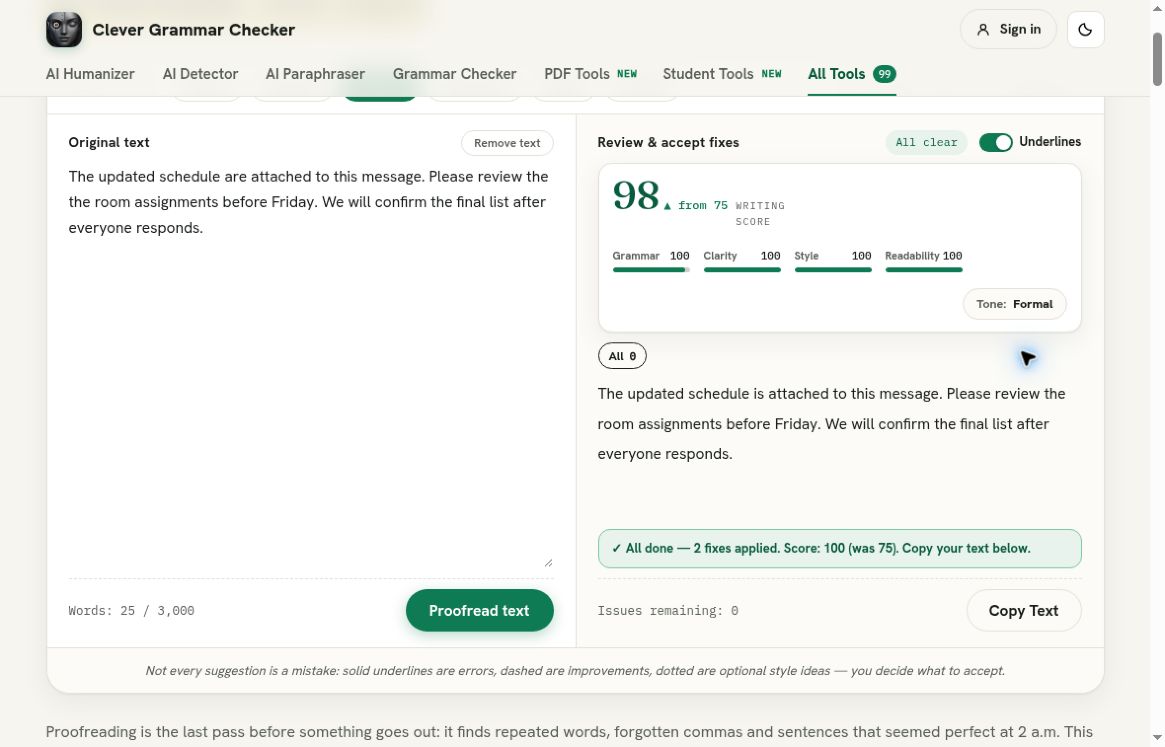
A proofreader will often help you find issues with content that feels complete. This walkthrough will show you how this free tool works. We’ll use a fictional example of an update to a schedule, with some minor edits. This example has been kept short so you can see everything. The text will be exactly as written.
This message is requesting a review of room allocations for an updated schedule. We’ve made two intentional mistakes. The subject is singular so the verb should be singular and we have a repeated article. Both mistakes were found by the tool. As we’re going to be reviewing the suggestions we’ll take a look at both before using the bulk action.
This is useful if you want to quickly make changes to a large amount of content. However, if you’re not taking the time to look through the suggestions it won’t be as useful. We’re using this to show how you can apply a batch of changes with intention.
Before you start, save your original message somewhere you usually write. Ensure your text is appropriate for the service and doesn’t include any personal information that isn’t necessary. We’ve used fictional content so we didn’t need any real emails, employee names, schedules or attachments. We can test how the tool works functionally.
This is a final pass for language issues. We won’t know if there is an attachment, if Friday is the correct deadline or if the room allocations are correct. These should go on a separate checklist. By separating the language review from checking the facts we ensure that we don’t miss the most important checks to the recipient because we’ve fixed issues.
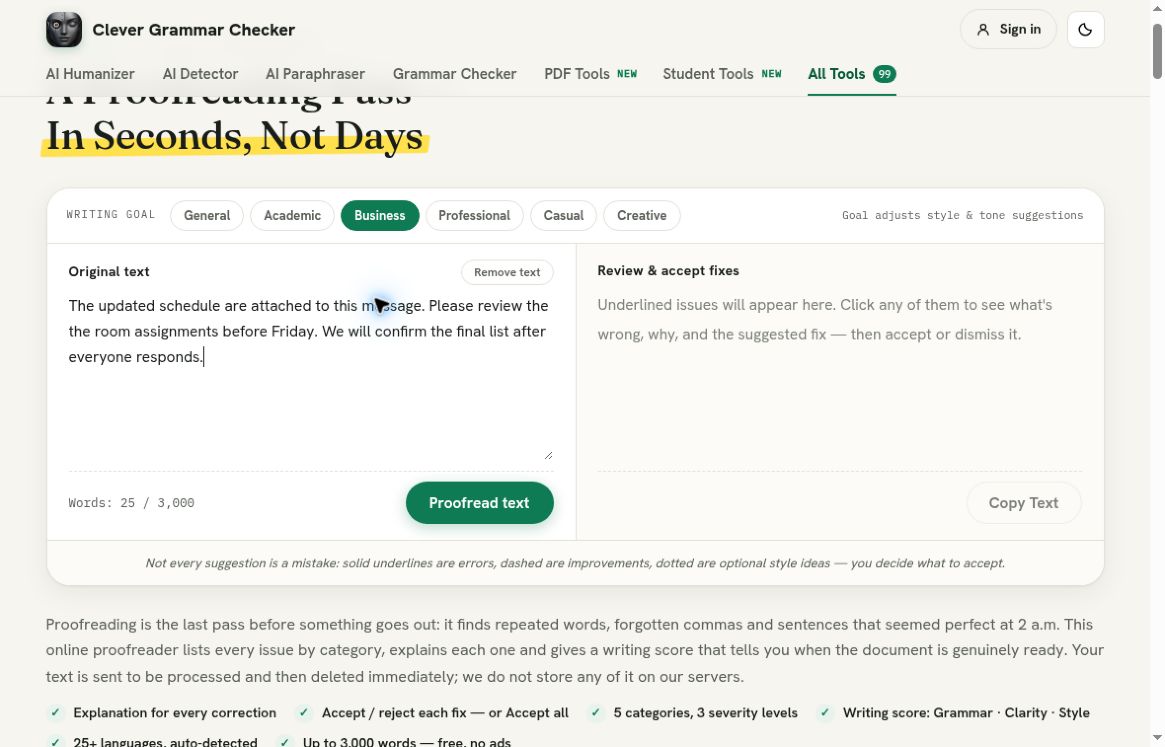
Go to the Online Proofreader page. Under the original text box you’ll see some options for what you’re trying to achieve with your writing. Select Business. This was what we used for our schedule message. There are other options but we aren’t comparing them. We just want to ensure we select the correct context for the text we’re reviewing.
Paste the sample text (shown in screenshot one) into the original text box. We can see there are 25 words in the text. We have two intentional issues. The first sentence has a subject/verb agreement issue and the second has a repeated article. By reading through the original text first you’ll have a good base to judge the changes from. This also means the output won’t be the first serious read through of your message.
[Image: Screenshot one – Paste in your fictional schedule update]
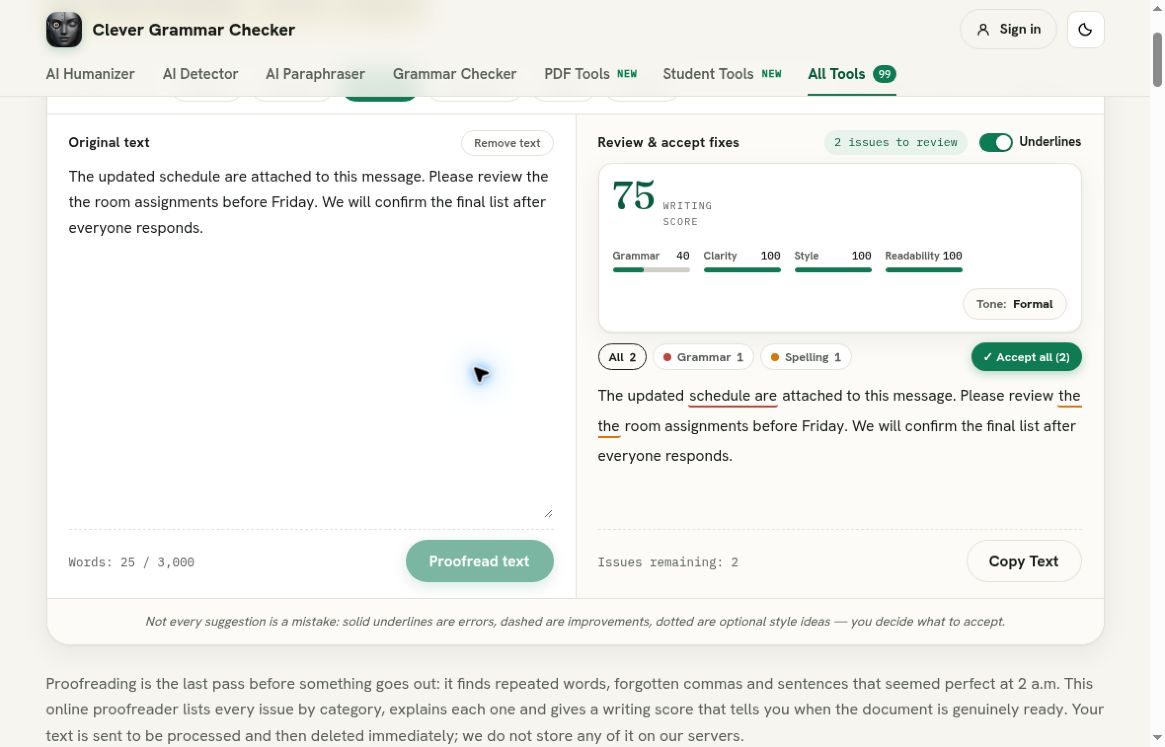
Click the proofreading button. Whilst it processes you’ll see it change to scanning mode. Once it has finished you’ll see two issues in the review section. One was placed into the grammar category and the other into the spelling category. Whilst the categories are useful for navigating, what the tool is suggesting is what will determine if it should be corrected.
[Image: Screenshot two – Scanning complete with two issues]
You can see the original text and the changes in two sections. If you’re using your own text, you may want to start with a paragraph. By breaking up your text into sections you’ll reduce the chance of missing any context. However, you’ll still need to read through the whole document.
You’ll also see a tone and score. This message had a formal tone. This is what the tool thinks based on the content. It won’t tell you how every recipient will feel. Your message may be grammatically formal but could be unclear on who needs to do what next.
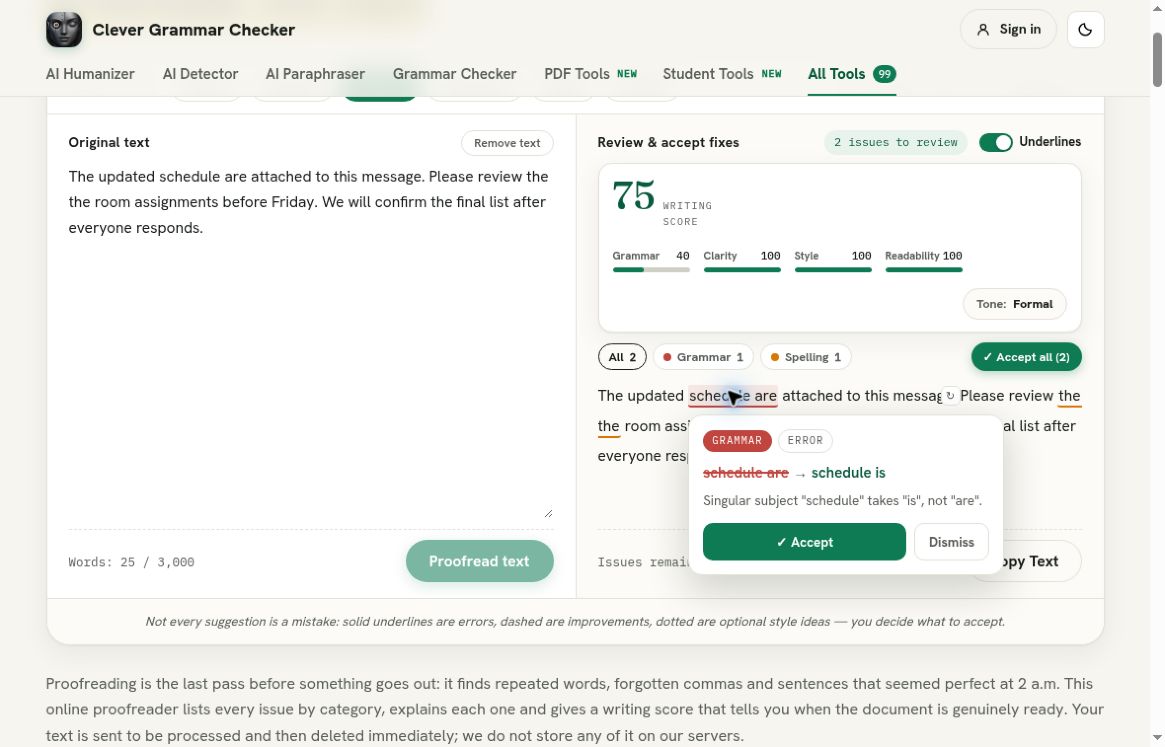
Click on the first underlined issue. The grammar issue shows that the subject is singular so the verb should be too. The screenshot shows the exact text from the original and what it will change to. The whole sentence can be seen below. The change has corrected the agreement issue but hasn’t changed what is attached to the message.
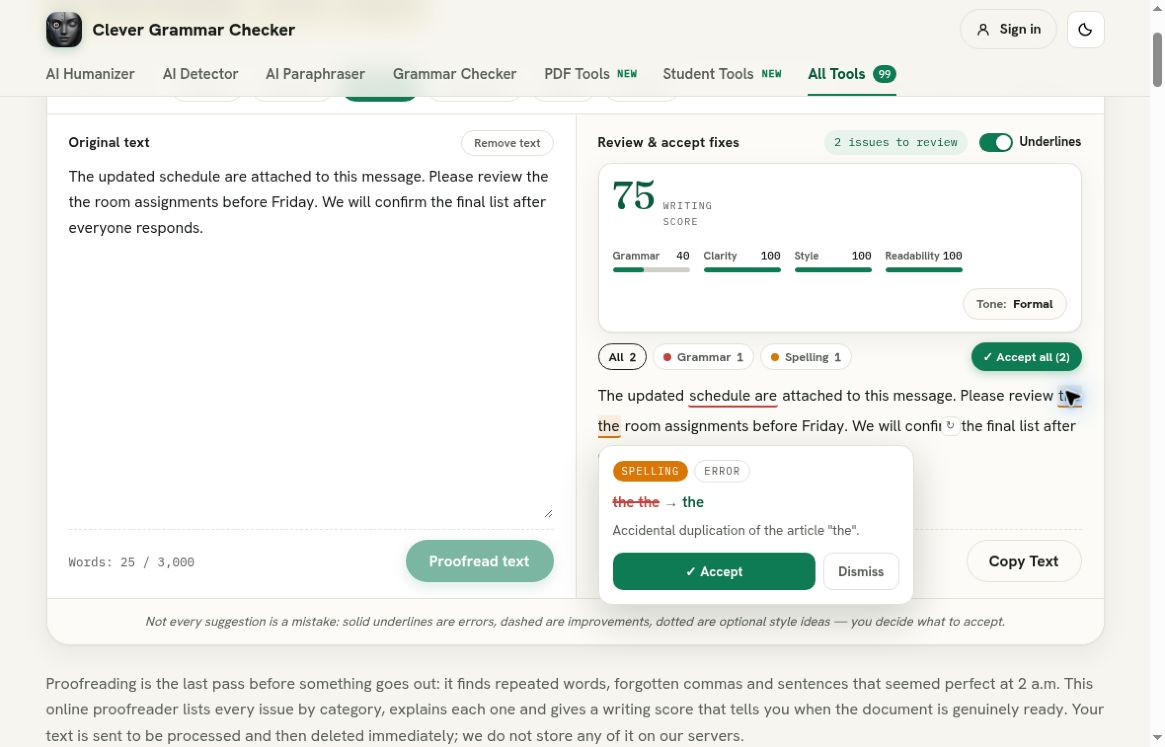
Don’t apply this change yet. Click on the second underlined issue. The next card shows that there has been an accidental repeat of the article before ‘room allocations’. This will remove the repeat whilst keeping one article. The screenshot shows the exact text from the original. This is a small change but can be missed after a few quick reads through as the intended sentence is so clear.
Both of these changes have been reviewed. They’ve corrected the agreement issue and removed the accidental repeat. They haven’t changed what the deadline is, what we’re asking the reader to do or the order of the schedule. We can now use the bulk action. Click once.
Whilst clicking on the suggestion cards will show you what the tool is suggesting, this doesn’t mean the output has changed. Similarly, whilst there are less issues this doesn’t mean the text is what you intended. Once you’ve clicked the action take a look at the whole output.
If you’re using this on a real message with a mixture of suggestions, don’t use the bulk action until you’ve decided what to do with any uncertain issues. You may need to make a different decision on style, proper nouns or specialist terms. The safest way to use this handy bulk action is after you’ve made your editorial decisions.
Once the bulk action has been used you’ll see that two issues have been fixed. There are no issues left. The output shows that the first sentence has the singular verb and the second sentence only has one repeated article. The final sentence has remained the same. We’ve taken a look at the whole output so we know the action has completed successfully.
Comparing this to the original message we can see that we’re still referring to the same schedule, room allocations and confirming the list once everyone has responded. The tool has corrected any local language issues but hasn’t changed the intent of the message. This is the benefit of this test. It doesn’t mean that the tool will make suitable changes to all longer or more ambiguous documents.
The score on this page has changed but we’re not using this as a sign that the message is ready. A work update should only be sent once you’ve checked all the facts, who it’s for, what you’re asking them to do and any supporting information. If the message states that there is an attachment, check that there is one in the actual application. If there is a deadline, ensure it’s up to date and easy to understand.
We didn’t use the copy function, upload a document, compare different contexts or individually dismiss any issues. The verified process is to type in your text, complete the scan, review both suggestions, use the bulk action and finally read through the output. Keeping the process simple will help you recreate the result.
Ensure you’re happy with the original message before moving the corrected passage elsewhere. If it’s a passage from a colleague ensure any meaningful changes to the wording are visible to them. A proofreader can help you communicate carefully but it doesn’t replace what the author is responsible for.
This process can be turned into a short checklist. Read through your draft to ensure the meaning is correct. Check the details you know the tool won’t know. Run a language check with the correct context. Review the changes. Apply any changes you agree with and read through the whole revised text. Finally check the message you’re sending. Ensure any attachments, links, recipients and formatting have been checked.
This is especially important if you’re asking someone to do something. Whilst this fictional message is asking people to review room allocations by a deadline, in a real scenario you’d want to ensure those responsible are clearly stated, they know how to respond and the document they’re being referred to is accessible. None of this will be decided by fixing an agreement issue or removing a repeat.
If you’re working with longer text keep a small list of issues you commonly come across. If you’re finding repeated words after editing, take your time to read through the joins between the edited phrases. If you’re finding agreement issues after changing a plural subject to a singular one, check the verb at the same time. This will help you learn from the review.
Whilst the site explains how your text will be treated, this walkthrough wasn’t an independent check on privacy or security. We’ve used a fictional message and are only reporting on how it functioned. We had a positive outcome. Both issues we intended to find were found. The changes were available for us to review and we applied the reviewed bulk action to get the expected final text.
Using this free proofreader can help you organise a second set of eyes on your normal wording. Remember to keep it in proportion. Using the suggestions will help you find and fix local issues, whilst keeping the meaning you intended. Finally ensure you’re doing the practical checks only the sender can do.