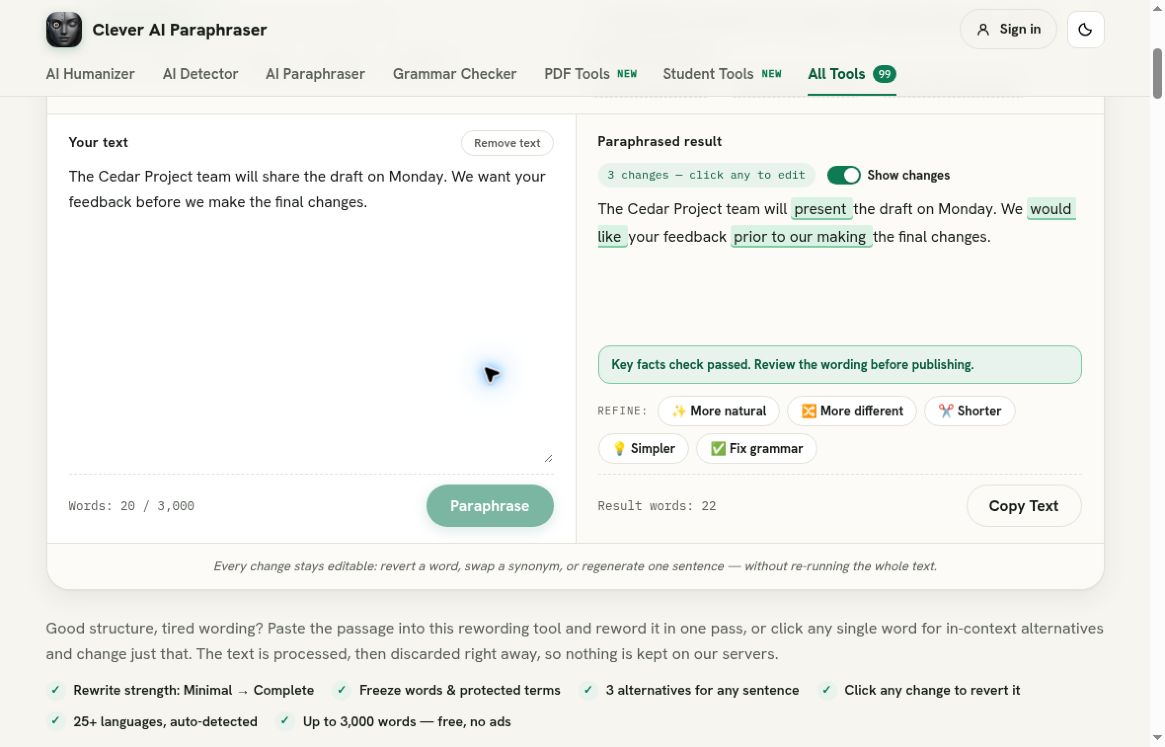
A project name is a specific detail and a deadline is also a key detail. Using a rewording tool, it’s good to know what information you’re okay to change. This walkthrough will use a fictional example of a 2 sentences project update with a protected project name and clear deadline instructions.
The original message states that a team will be providing a draft on Monday and feedback is required to make final changes. The original message can be seen in the first screenshot below. As the project name is fictional this will not give away any sensitive details about the project or how much work needs to be done. We can clearly show the controls without using any confidential messages.
We want to make a slight change to the tone. We aren’t looking to increase the length of the message, create a new project status or change the order. Therefore we can use the controls to set it to formal, low rewording and the same length. However we will also use the advanced controls.
Create your meaning checklist
As an example it’s clear what information needs protecting. We need to ensure that the team, project name and deadline are still the same. Creating a quick checklist will help you to identify any issues. If all three are still present but the tone has changed this could be useful. However if the tone has become more professional but one of the details has changed further consideration is needed.
In your own project, you may have a product name, technical term, reference number or something required by your style guide that needs protecting. You may also have a qualifier that needs protecting. Consider why a detail is important and decide if it can be paraphrased. Be aware that whilst exact wording and meaning are related they are not the same thing and some information can be paraphrased whilst some cannot.
Ensure you save your original so that you can easily determine if any changes have been made. If you’re using information from someone else ensure you attribute it correctly with any necessary citations. You may also have rules about using assistive tools for school or work projects.
Set your first control
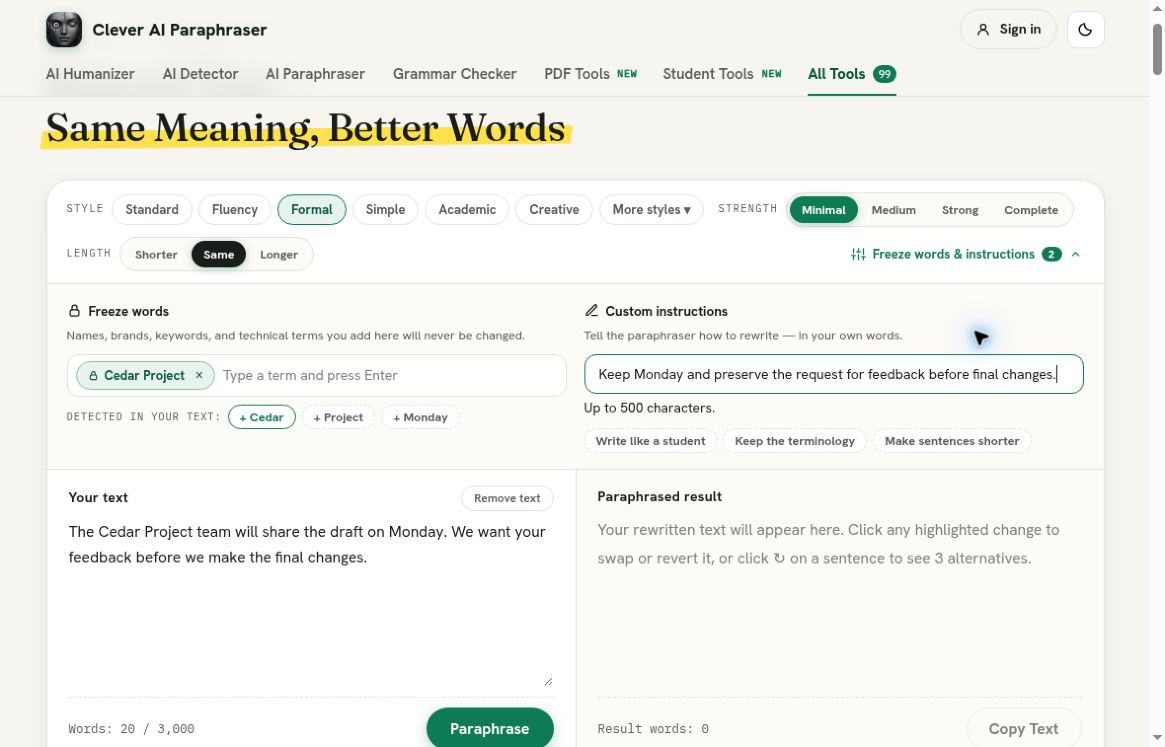
Go to the Rewording Tool page. Select formal, low and same length. Paste your 2 sentence original message into the text box (found in screenshot one). The system says there are 20 words. The message is short so that it is easily identifiable when checking.
Scroll down and open up the advanced options. There is a box for protected words and a box for custom instructions. There are also suggestions of words that could be protected based on your original. They can be a helpful way to prompt yourself but ultimately it’s your decision which exact phrase you wish to protect. Just because there is a capitalised word doesn’t mean that it will be the full name.
Protect your full name and instructions
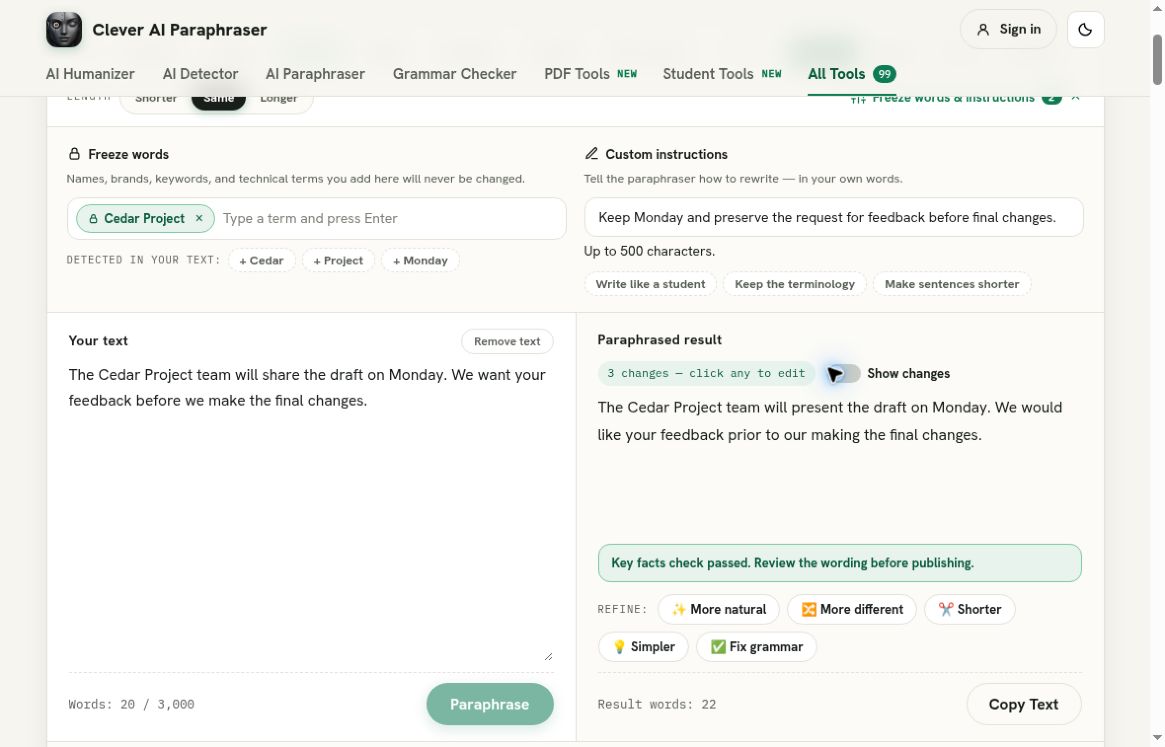
Insert your full fictional project name into the protected words field. Press enter. The system will now show you a chip with the project name, confirming that it has been added. In this example we protected the full 2 word project name.
Insert your instructions into the custom instructions box. We want to ensure that Monday is still mentioned and that we ask for feedback before final changes. The exact message can be seen in the screenshot below. We are simply using this as normal editing instructions. We aren’t asking to make anything up or to change the meaning. This will make it clear that we want to ensure that these steps happen.
[Note: Screenshot one shows original message, protected project name chip and custom instructions.]
Double check your controls. If you had left the protected word in the box it would be different to having it in the list. If you had changed the meaning it would be a new piece of writing to do. We have intentionally set the controls to ensure that the project name and deadline stay the same but we have made a slight change to the wording.