2 Typos
This is the sentence we are using to test this free tool with. The sentence is complete and clear, with 2 typos. We are going to start by creating a short example message with 2 misspelled words. This will help us to see what each suggestion will change.

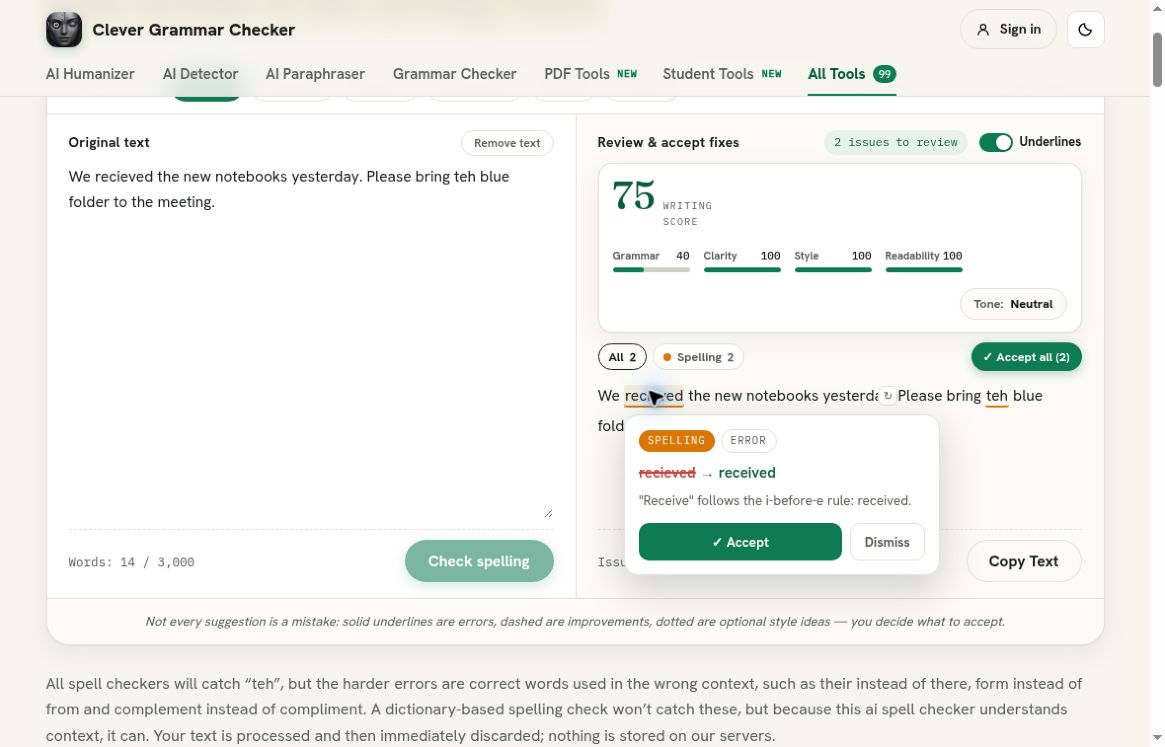
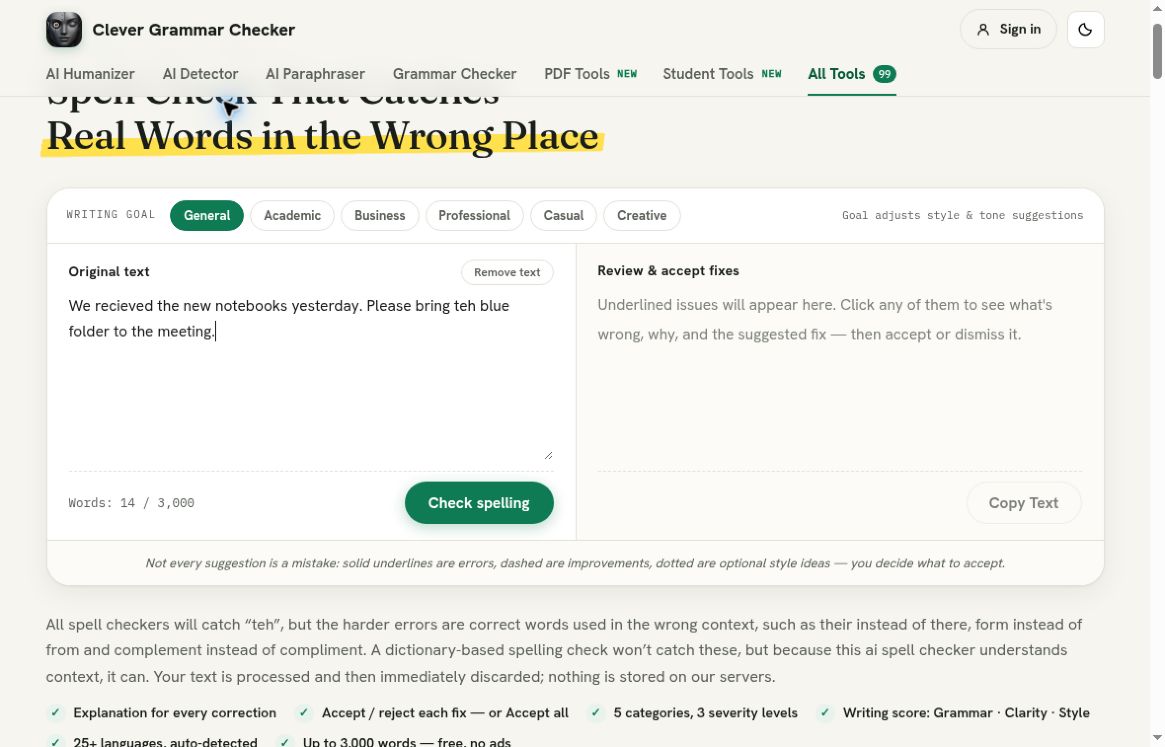
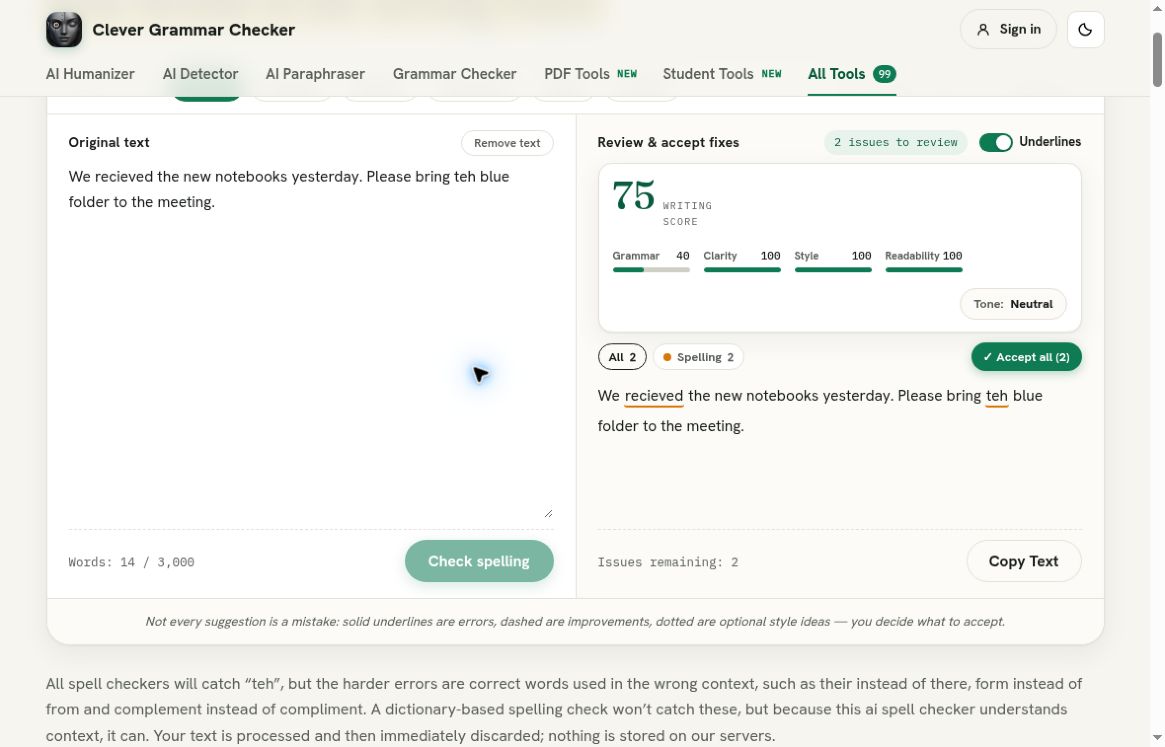
The example sentence to begin with is shown in the first screenshot. This is a short message asking for some notebooks, and there are 2 misspelled words on purpose. There is nothing to identify who this message is for, or any personal information. This is a good example to use for a screenshot as the message is created.
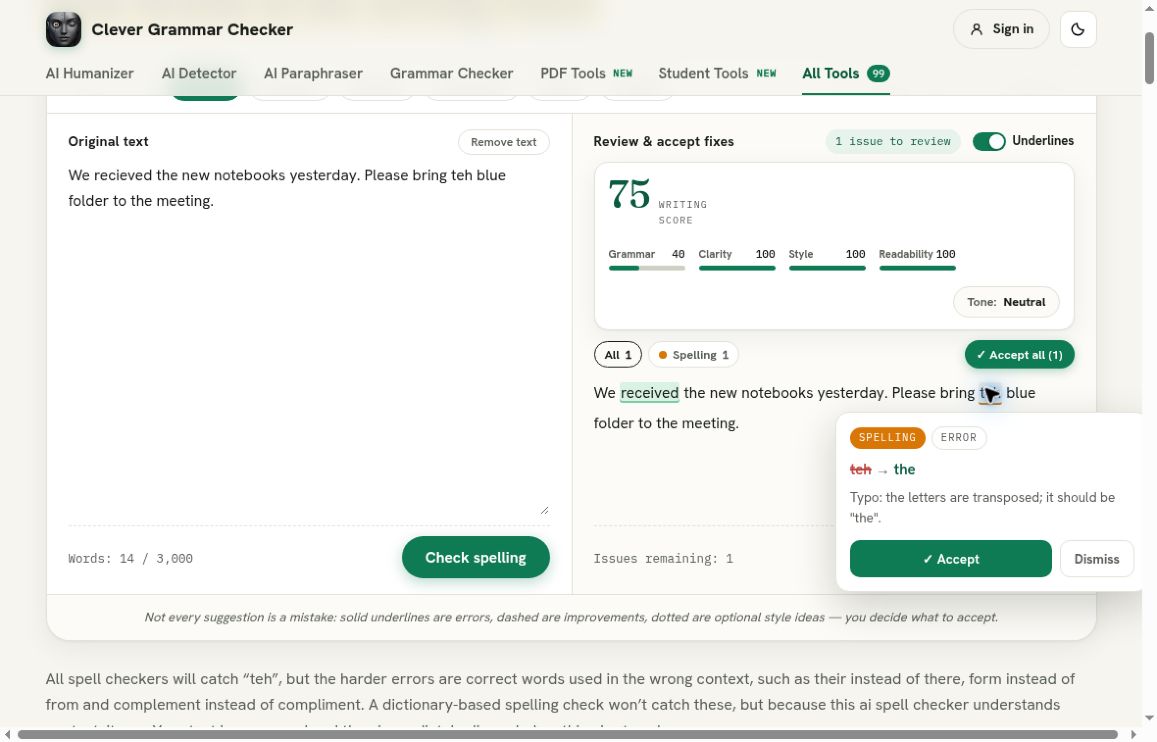
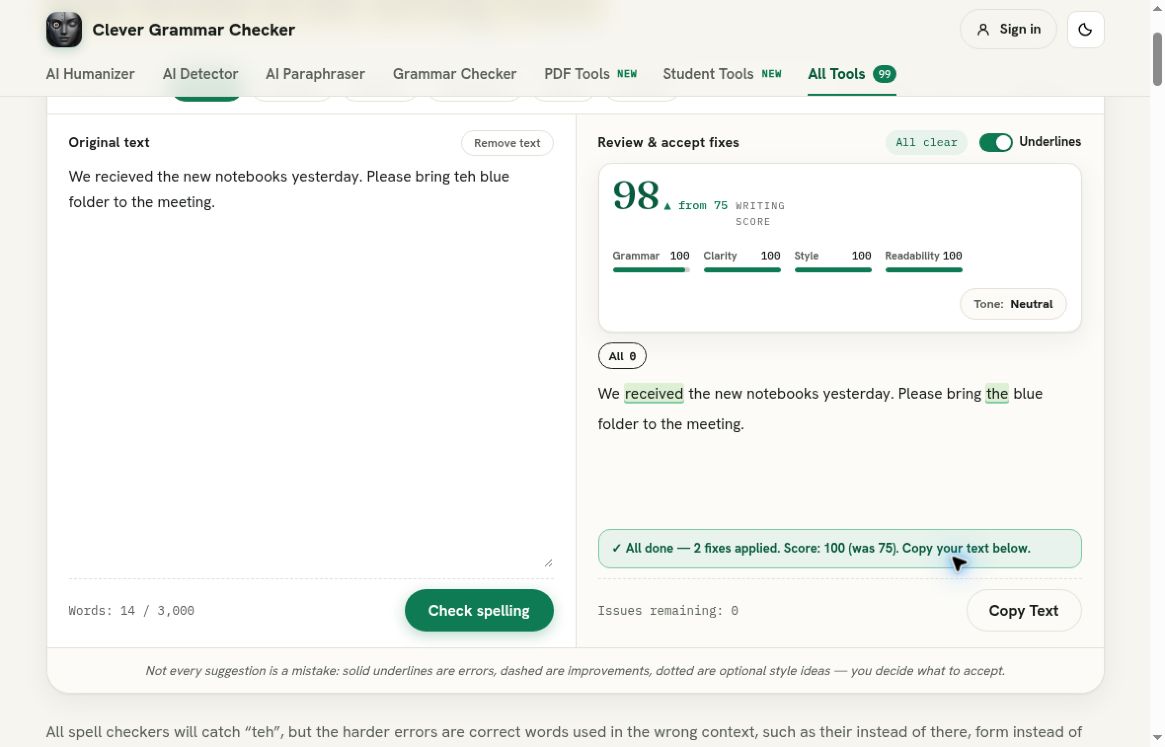
This is a positive outcome. The typos were identified and the correct suggestions were provided. When they were accepted, they were applied to the sentence. There was one issue with the explanation, however. The process of how to correct the typos is shown below, but it is worth knowing that whilst this tool did a great job, it does not mean every sentence will be an expert on English spelling.
Preparation
Go to the Spell Checker page. Under the Original text section, there is a text box to type in. The page states ‘Text to check for grammar’ and the ‘Check spelling’ button. This is good to know so you don’t get confused with the wider interface. You can select what the text is for, General, Academic, Business, Professional, Casual and Creative. We have left this as the default.
Type the example sentence into the text box. The word count shows 14 words, and there is a limit of 3000 words. On the blank screen, it states there needs to be a minimum of 30 symbols. This example is well over that. If you are checking a short typo, it may not be enough to check. Try to use a meaningful sentence.
[Image: Example sentence with 2 misspelled words]
Save your original text somewhere you usually would. This will help you compare the suggestions. If you are doing a normal proofread, make sure there is enough text around the sentence to understand it. Don’t add any personal information to increase the length. This example only needed 2 simple sentences.
Checking
Click the ‘Check spelling’ button. Whilst checking, the button will say ‘Cancel check’. The results will show that there are 2 issues to check. The ‘Spelling filter’ will show that there are 2 spelling issues. There is also an option to ‘Accept all’. The results will show the original sentences, with the misspelled words highlighted.
[Image: Results after scanning]
Don’t be confused by the scanning. Wait until you can see the options to check, and the suggestions. If you want to replicate this example, use the same example. You may not get the exact same numbers and animations, but the suggestions will be the same.
The page also shows a score for the writing, and sub scores for each category. Whilst this will give you an idea of how the tool sees the writing, it does not show that the message is factually correct or the right message to send to the recipient. This example is very simple, and we just want to know if the 2 intentional typos were identified, and if we could accept the changes we wanted. The suggestions are shown below.