Word Counting
Sometimes you may have a short piece of text that is still too long for wherever you need it to go. You may have a school project with a word limit, or an application field with a character limit. This means there are different constraints to consider. Estimating how many words you have based on the length of a paragraph is not reliable. This guide will walk you through how to use this free tool. We will use a small example of an announcement for a garden club.
This is just a walk through of the tool provided by the publisher. We have tested adding text, viewing the live results, editing and clearing the editor. We have not tested all the different document types and languages. However, the tool worked well and gave us the results we wanted. The word counter responded to the two examples and reset to zero. Below we have outlined the exact steps taken and some things to note.
1. Open the Word Counter
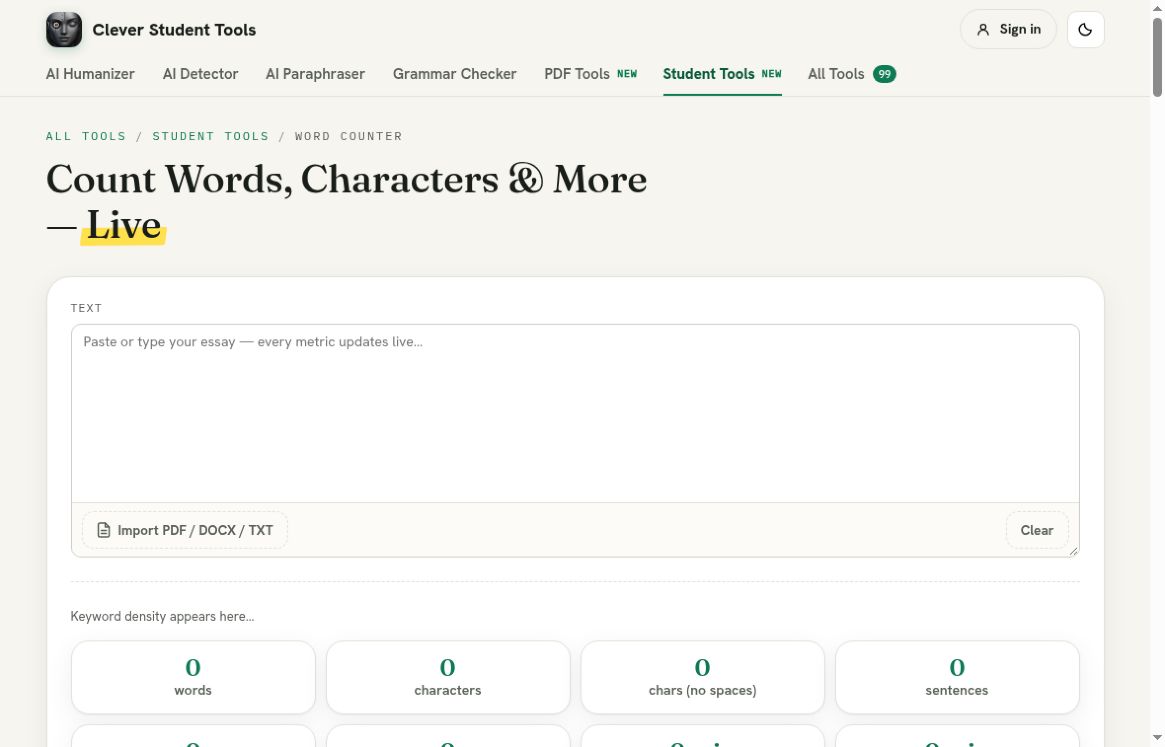
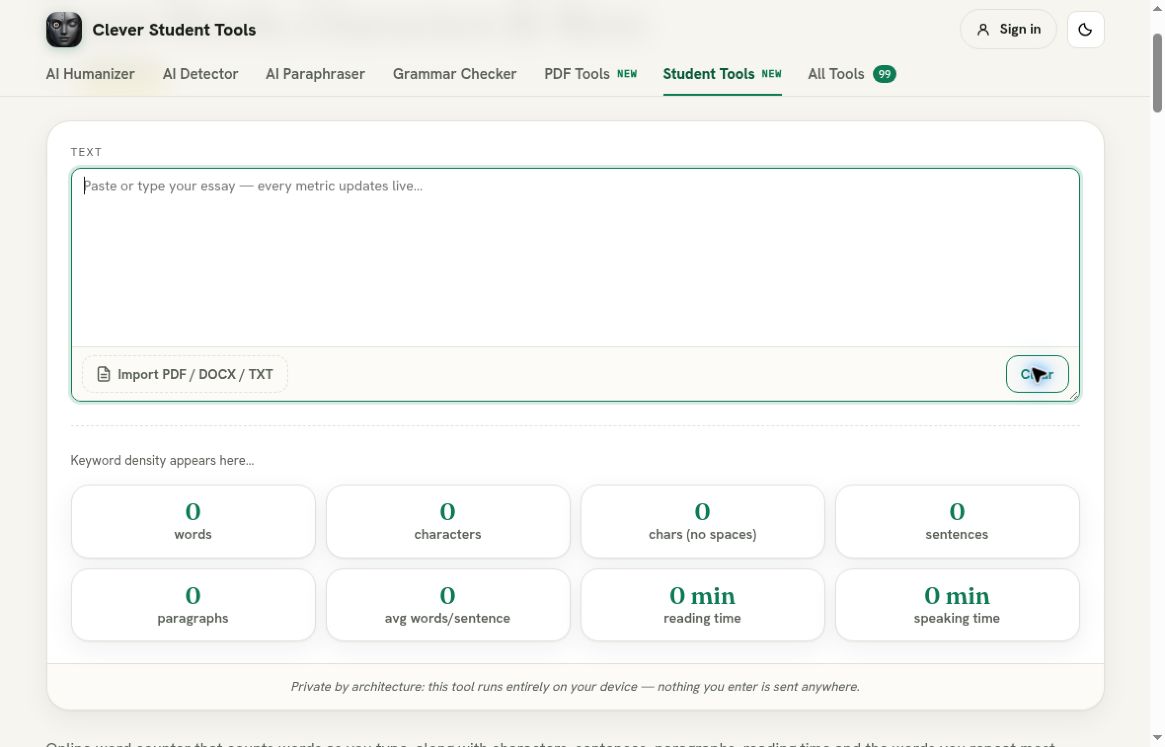
We opened the Word Counter page. You will see a big box with the heading Text. There will be zero values as there is nothing in the box. The Clear button will also be greyed out. There will be an Import PDF/DOCX/TXT button but for this example we will type text directly into the box. This will keep the example small and will not involve importing files. We are not verifying that we can import files, just that it is an option available.
Before you add your draft text consider what should be counted. Your title, references, footnotes and signature may or may not count towards the limit. The counter will not understand rules set by your instructor or application form. If you only want to count the body of your text highlight this in your source document. This will avoid having to count everything and roughly deduct some words from the total. This will also ensure that you do not alter your original document.
[Image: Empty word counter]
2. Add example text with a paragraph break.
To recreate the example input you must type exactly what is shown in screenshot two. Please ensure that there are two sentences in the first paragraph and one in the second. You should hit enter twice between paragraphs. This test has been created using simple English sentences with no abbreviations, links, emojis or special characters. Please ensure that the text matches exactly as shown in the screenshot as this will affect the count results.
We did not need to click a count button. We were given the results of 15 words, 87 characters, 72 characters without spaces, 3 sentences and 2 paragraphs. If you count the words in the example manually you will see that there are 6 words in the first sentence, 5 in the second and 4 in the third. This equals 15 words which matches the result. The average words per sentence is 5 as 15 divided by 3 is 5.
[Image: Garden club example]
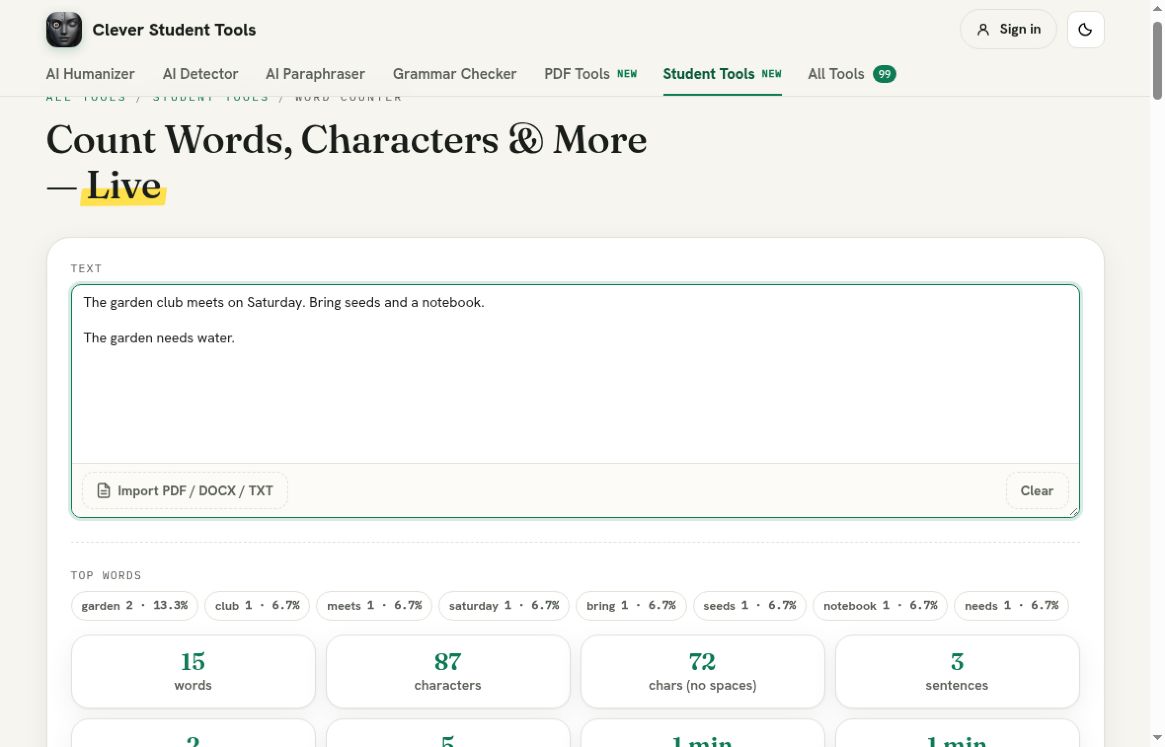
Note that the two different character counts. There are spaces and a paragraph break in the text we added. Even though these are not letters they still count. If you are using a form that has a character limit make sure to read the instructions carefully. Do not use the word count as a substitute. Long words can take up many more characters than short ones. Punctuation will also contribute to the total.
3. Read the extra information.
The Top Words section has highlighted the word garden as it has appeared twice. In this very small example it has appeared twice out of 15 words. This is why it has said 13.3%. The other words have appeared once and therefore have said 6.7%. This can be a good way to identify repetition. However, it is not always an issue. In this example we are writing an announcement for a garden club so repeating the subject may make it clearer.
The text took 1 minute to read and 1 minute to speak. This is just a quick example so do not think you need to spend exactly 60 seconds reading it. This is just an estimate of how long it would take to read. If you are writing a timed speech make sure to practice it aloud. This will include pauses, names and emphasis. This is a quick estimate which can be useful for triaging but it will not show how you will deliver the passage.
The average sentence length is 5 words. This does not mean that the text is brilliant, suitable for all audiences or ready to publish. Short sentences can be confusing and longer sentences can be clear. Use the counter to find areas to review but read the actual sentences. The numbers are to help you edit.
4. Edit and view the difference.
We added ‘Volunteers are welcome.’ to the second paragraph. The page updated to show 18 words, 111 characters, 93 characters without spaces. There are now 4 sentences and 2 paragraphs. As we have added a new sentence within the paragraph there should be no new paragraph. The word count has increased by 3.
[Image: New announcement]
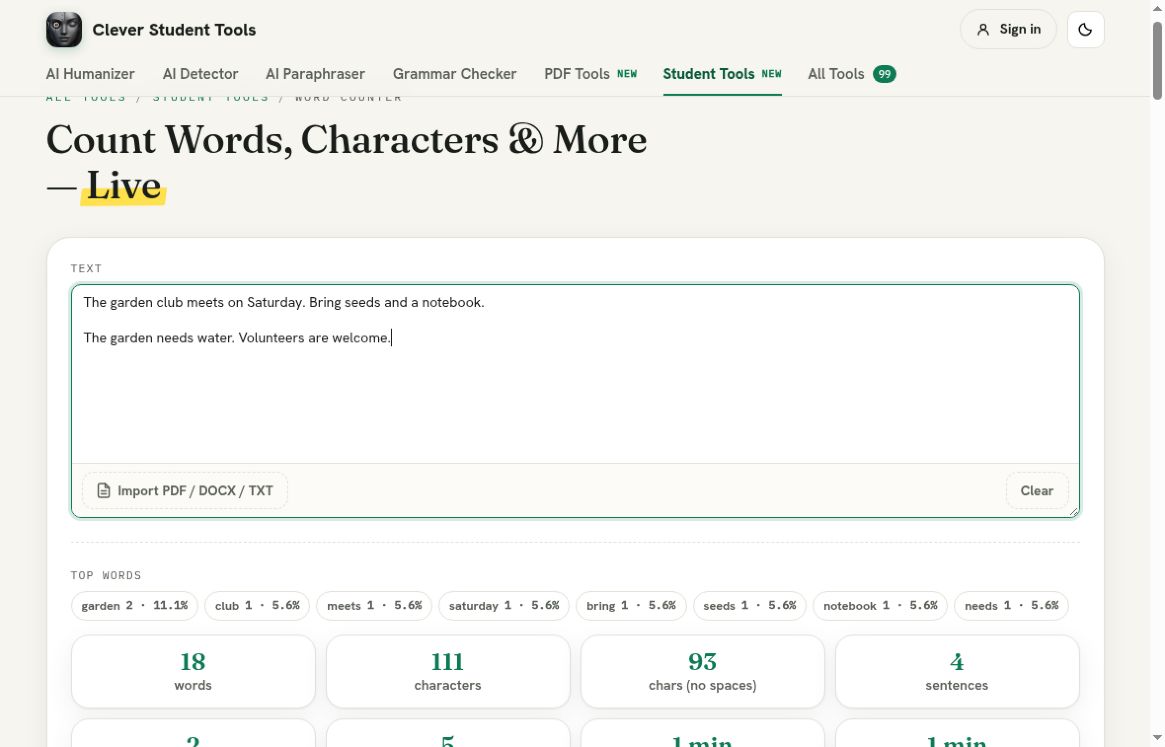
The Top Words section still says garden has appeared twice but the percentage has changed to 11.1%. This has not changed the word itself but the total has increased from 15 to 18. This is a good reminder. The percentage may have dropped because you have added unrelated text. Do not assume that it has become clearer for the reader.
The average words per sentence is still 5. The actual average is 4.5 (18 divided by 4). However, this example will display whole numbers. This is not a reason to dismiss the tool but it is a reason not to try and calculate an exact total. Just use the word and sentence counts.
5. Clear the text.
We clicked the Clear button. The text cleared, the keywords box reverted to the placeholder and the counts reset to zero. The Clear button was greyed out. This confirms that the tool has reset. Before doing this with your draft make sure you have saved any changes elsewhere. Whilst it is convenient to have a counting box it is best practice to keep your main copy elsewhere.
[Image: Editor cleared]
Final tip for everyday use
To use this tool for everyday use simply follow the same process. Decide what text should be included in the limit. Add it to the tool. View the correct results. Edit if necessary. If the destination has a counter use this to confirm. Different systems may count punctuation, hyphenated words and formatting differently. This example shows what will happen with a simple English example but this may not be the case with all editors.
Whilst the page mentions this runs on your device this was just to verify the interface works. Do not assume this will be secure. The best evidence we have is that we have seen a 15 word example, edited it to 18 words and successfully reset. If you need to do a quick check like this use this free counter.